The Tree options menu explained: what every item does
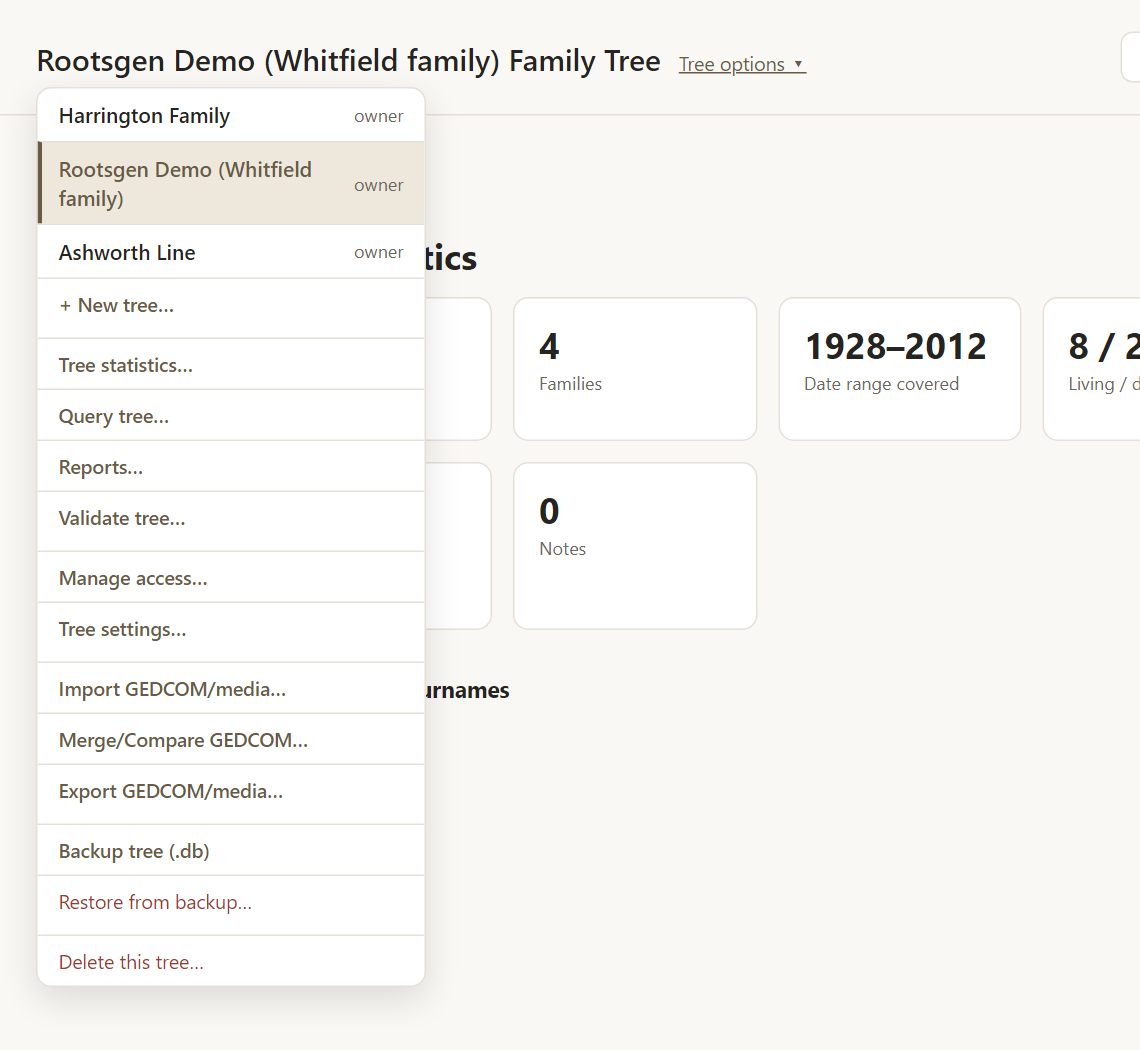
The Tree options menu is where everything that applies to a whole family tree lives. It sits next to the tree's name at the top of every page. Hover over any item and a short tip explains it; this guide goes further and links each item to its own page. Which items you see depends on your role on the tree - viewers see the read-only tools, editors also see data checks, and owners and co-owners see the full list.
Your trees and creating a new one
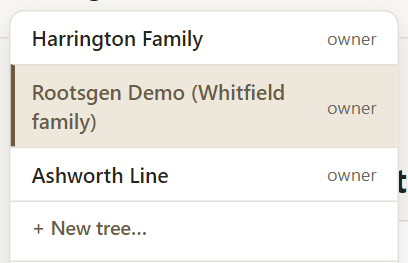
At the top of the menu is the list of trees you can open, each labelled with your role (owner, co-owner, editor or viewer). Pick one to switch to it, or choose + New tree… to start a new one. See switching trees and creating a new tree.
Look at and search your tree
These four tools help you understand what is in a tree, and are the ones most people use every day.
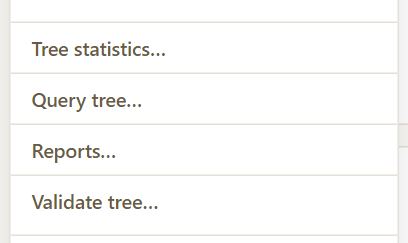
- Tree statistics… shows how many people, families and photos the tree holds. See tree statistics.
- Query tree… searches by name, sex, dates, places, events and relationships, and can export or print the results. See Query tree.
- Reports… opens thirteen printable charts, sheets and lists. See family tree reports.
- Validate tree… scans for impossible dates, duplicate-looking people, orphaned records and photos still waiting for their file. See Validate tree.
Share and set up the tree
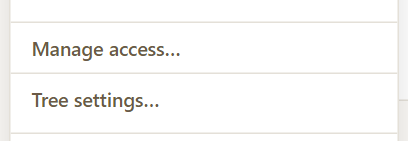
- Manage access… is where an owner or co-owner invites people as viewers, editors or co-owners. See sharing your tree.
- Tree settings… chooses which person the tree opens to. See tree settings.
Bring data in and take it out

- Import GEDCOM/media… fills an empty tree from a GEDCOM file and a folder of photos. See importing a GEDCOM.
- Merge/Compare GEDCOM… brings an updated file into a tree that already has data, showing every difference first. See merging an updated GEDCOM.
- Export GEDCOM/media… downloads your tree for use elsewhere, with an option to mask living people. See exporting your tree.
Protect the tree
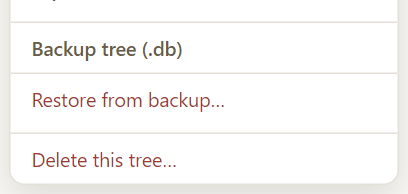
- Backup tree (.db) downloads a complete, restorable copy. See backing up your tree.
- Restore from backup… replaces the tree with a backup, after forcing a safety backup of the current state first. See restoring from a backup.
- Delete this tree… removes a tree permanently, and is deliberately hard to do by accident. See deleting a tree.
Frequently asked questions
Why can't I see some of these items? Items appear according to your role on the tree. A viewer can browse, view statistics, search and run reports. Editors also see Validate. Owners and co-owners see sharing, import, merge, export, backup and restore. Only the owner sees Delete this tree….
Where are my account settings? Account settings are in the round button at the top right, not in Tree options. See your account menu.
Is there a menu bar or toolbar? No. Rootsgen keeps actions for the whole tree in Tree options and actions for you in the account menu, so there are only ever two places to look.