Create a new family tree and switch between trees
You can have more than one family tree in Rootsgen: your own research, a spouse's side, a one-name study, or a tree a relative has shared with you. Each tree is kept completely separate, with its own people, photos and list of who may see it.
Switching between trees
Open Tree options and the trees you can access are listed at the top, each with your role - owner, co-owner, editor or viewer. Choose one and you land on that tree's default person.
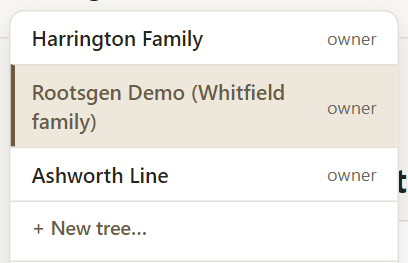
If you belong to only one tree, Rootsgen opens it straight away after you sign in. With several, you can choose a default in Preferences so it opens the one you use most, or leave it on "Always ask" and see the tree picker each time.
Creating a new tree
Choose + New tree… and give the tree a name. A description is optional. You become the owner automatically, so there is nothing else to set up and no administrator to wait for.
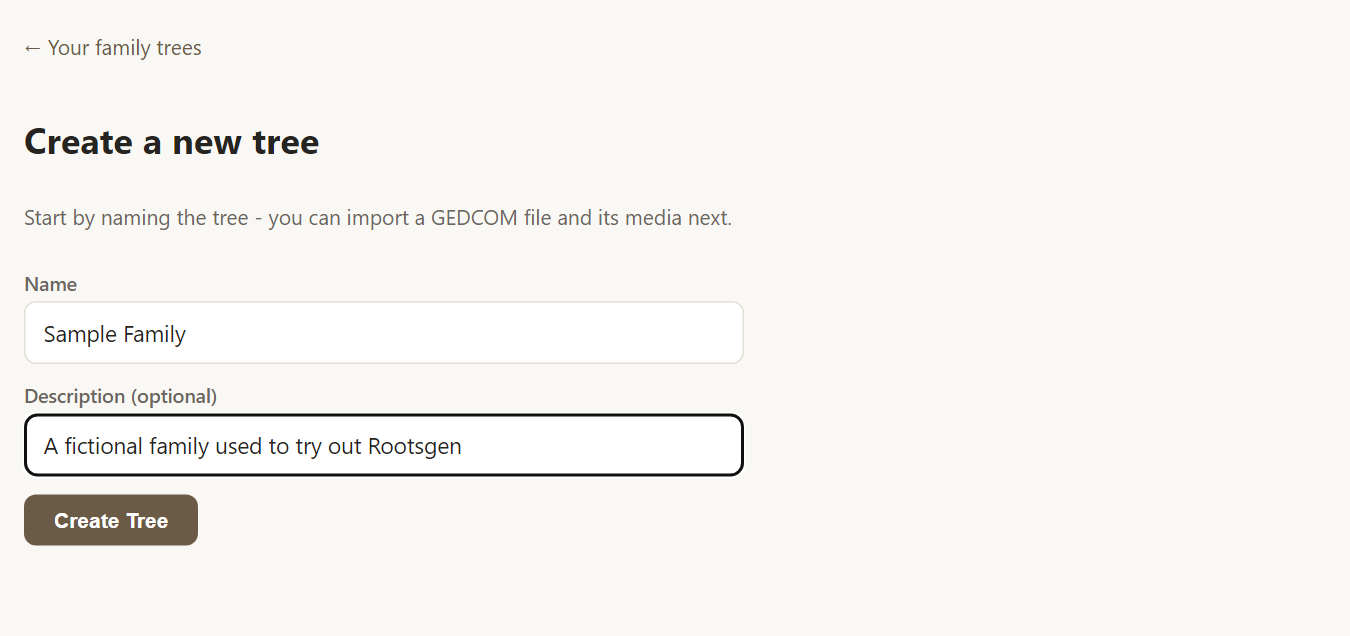
Step 2: import a GEDCOM file
Once the tree exists, the wizard offers to fill it from a GEDCOM file. This works with a file exported from any genealogy program. You can upload the file now, or choose Skip - I'll add people manually and start with an empty tree.
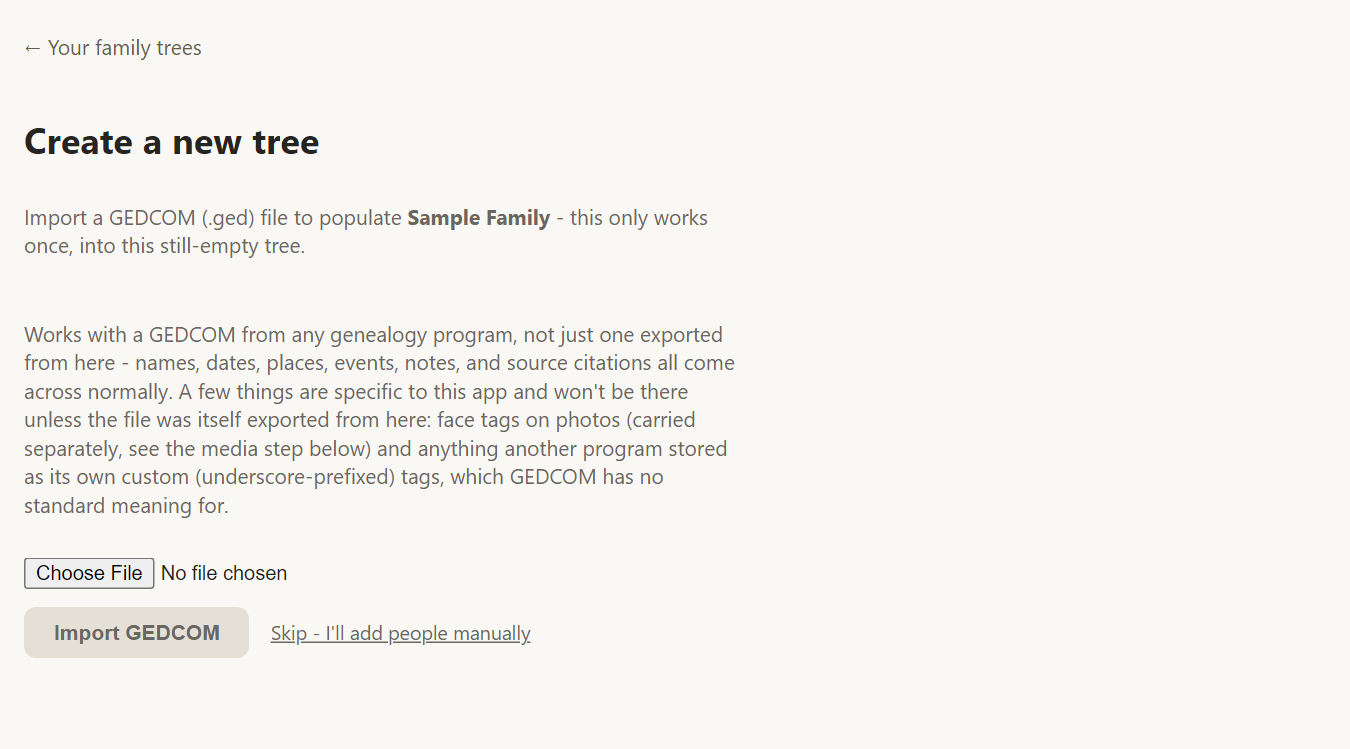
The next step brings in your photos and documents. The full walkthrough is in importing a GEDCOM and photos.
Limits
To keep the service fair for everyone, each account can own a limited number of trees, and each tree has a media storage allowance. If you reach a limit, Rootsgen says so when you try to create or import.
Frequently asked questions
Can two trees share people or photos? No. Every tree is separate, so nothing you do in one can affect another. That also means a tree shared with you cannot see your other trees.
What happens if I skip the import? You get an empty tree. You can add people one at a time with + New Person, or import a GEDCOM later while the tree is still empty. Once a tree has people in it, use Merge/Compare to bring in updates.