Merge an updated GEDCOM into your family tree
You exported your family tree from your genealogy software, and you have carried on researching since. Now you have a newer GEDCOM file. Importing it again would create a second copy of everyone. Merge/Compare solves that: it compares the new file against the tree you already have in Rootsgen, shows you exactly what is different, and lets you decide what comes in - before anything is written.
Where to find Merge/Compare
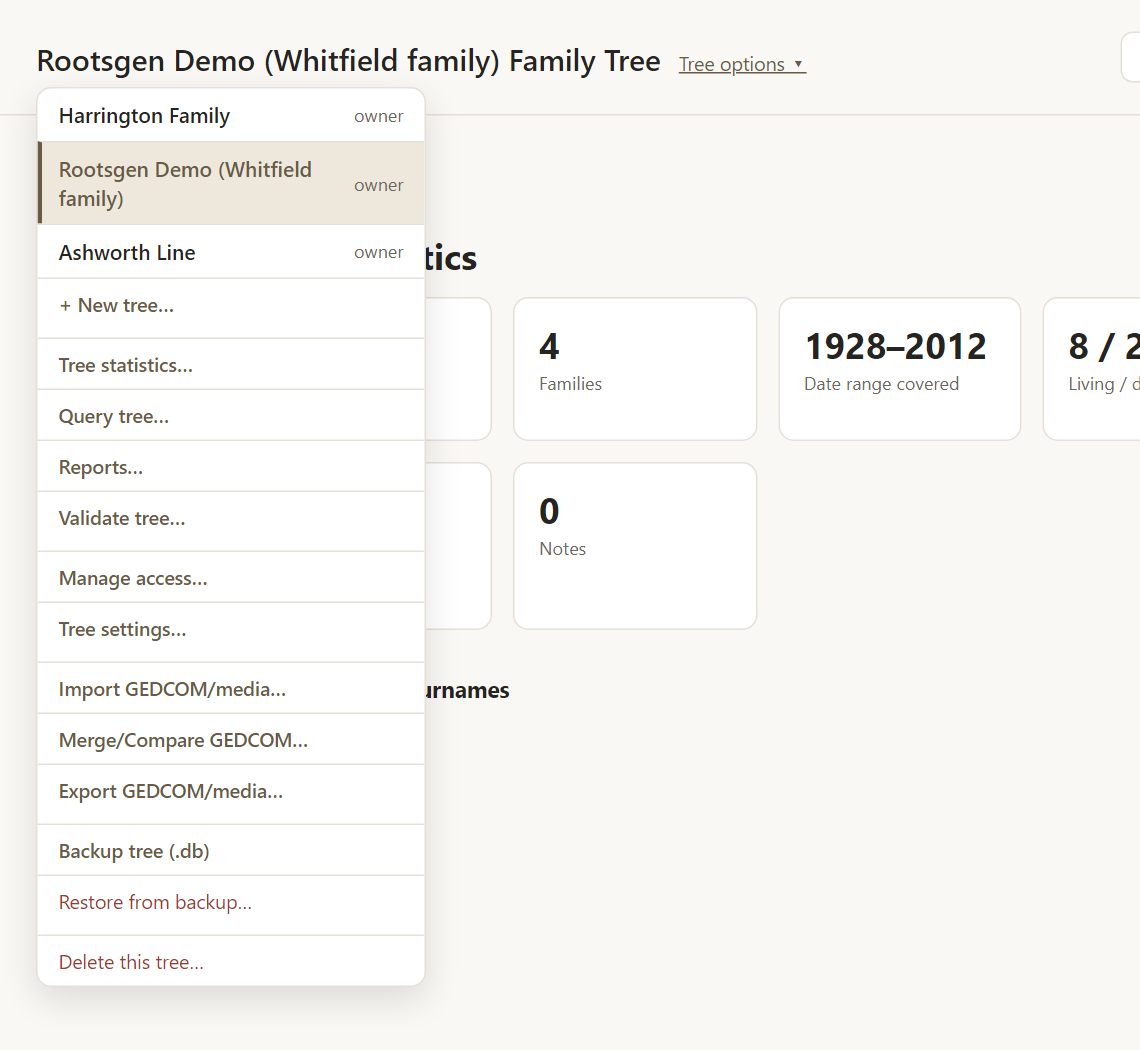
Open the tree you want to update, then choose Tree options → Merge/Compare GEDCOM…. It is available to the tree's owner and any co-owner.
Step 1: Choose your updated GEDCOM file
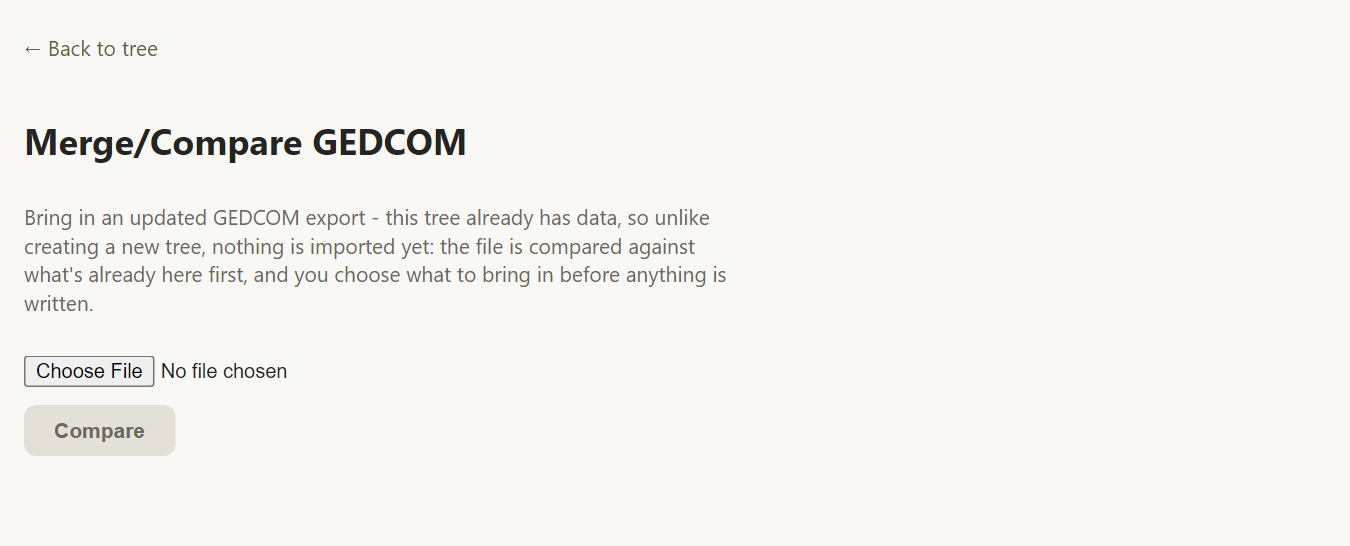
Pick the newer .ged file and press Compare. Nothing is imported at this point. Compare is read-only, so you can run it as many times as you like without changing your tree.
Step 2: Review what is different
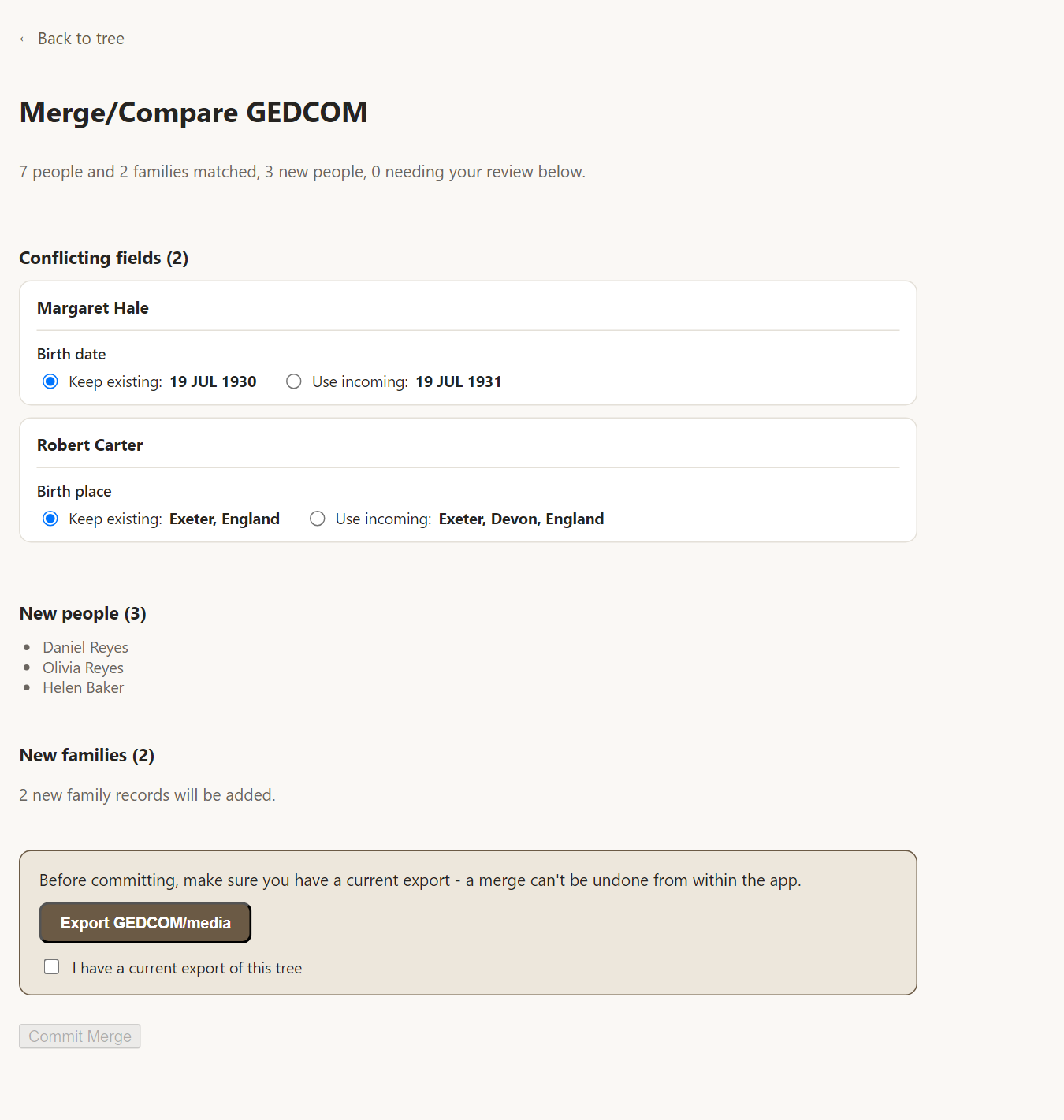
Rootsgen matches each person in the file to a person already in your tree - first by the person's ID inside the GEDCOM, then, where IDs do not line up, by comparing names, dates, places and family connections. A recorded difference in sex rules two people out as the same person, so a "James" is never matched to a "Jane" on name similarity alone. The page then sorts everything it found into clear groups.
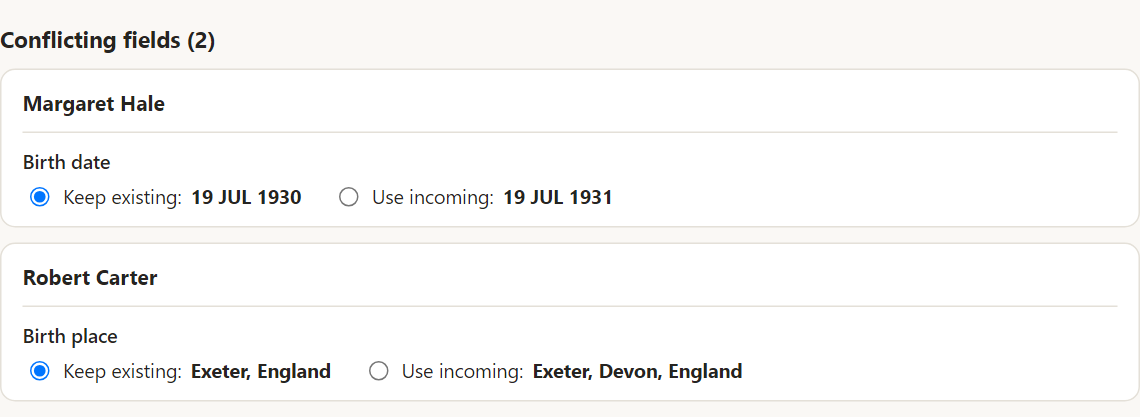
Conflicting fields
When the tree and the file both have a value for the same fact and the values differ, you choose. Keep existing is selected by default, so nothing in your tree changes unless you pick Use incoming. Each conflict names the person, so you can check the record before deciding.
Who is this?
If Rootsgen cannot tell whether someone in the file is a person you already have, it asks. Each candidate is shown with clues such as parents and spouse, so you can tell two similarly named people apart. You can match them, or keep them as separate people.
New people and families
People and families that exist only in the file are listed so you can see what is arriving.

Added automatically
Where your tree has nothing for a fact but the file does - a birth place you never recorded, say - the new value is added for you and listed so you can see it. A value that is already in your tree is never replaced unless you choose it in a conflict.
Step 3: Make a safety export, then commit
A merge cannot be undone from inside the app, so Rootsgen asks for a current export first. Use Export GEDCOM/media, tick I have a current export of this tree, and only then does Commit Merge become available. Keep that export: if you ever need to go back, you can import it into a new tree.

Step 4: After the merge
You get a summary of what was added and updated. If the file refers to photos or documents your tree does not have yet, the summary says so in an Action needed box. A GEDCOM file lists the pictures but does not contain them, so Rootsgen creates placeholders for the new ones.
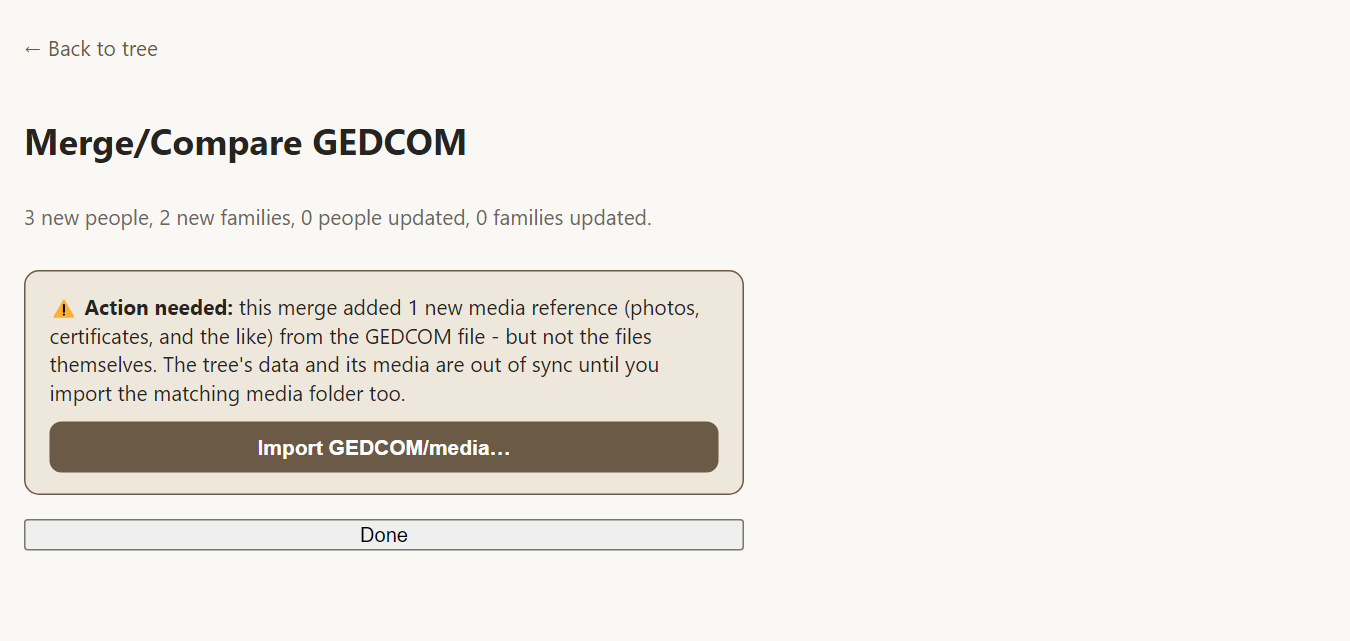
Press Import GEDCOM/media… and upload the media folder from your genealogy program. Rootsgen matches file names to the placeholders and attaches the real files. Files that were already imported are skipped, so it is safe to run again.
Tips for a smooth merge
- Export the new file from the same program you used before. Person IDs then stay stable and most matching is exact.
- Look at every conflict rather than accepting the defaults blindly - the incoming value is sometimes a correction and sometimes a typo.
- After a large merge, run Tree options → Validate tree… to look for duplicate-looking people or impossible dates.
- Merge is for a tree that already has data. For a brand-new, empty tree use Import GEDCOM/media… instead.
Frequently asked questions
Will Merge delete anyone who is not in the new file? No. A merge only ever adds. It never deletes a person, family, fact or photo.
What if I press Compare and then change my mind? Just leave the page. Compare writes nothing; only Commit Merge does.
Does it work with GEDCOM files from other programs? Yes. Rootsgen reads standard GEDCOM 5.5.1 files. Matching by person ID works best when the file comes from the same program each time, but name, date and place matching handles the rest.
Do I need to bring my photos in again? Only photos that are new in the file. Photos already in your tree stay attached to the right people.