Import a GEDCOM file and your photos into a new family tree
If your research already lives in another genealogy program, you do not need to type it in again. Export a GEDCOM file from that program, then import it into Rootsgen together with your photos. A tree of thirty thousand people takes seconds to import.
Where to find it
There are two ways in:
- Tree options → + New tree… creates a new tree and takes you straight into the import steps. See creating a new tree.
- Tree options → Import GEDCOM/media… does the same for a tree that exists but is still empty.
Step 1: import the GEDCOM file
Choose your .ged file and press Import GEDCOM. It works with a GEDCOM from any genealogy program. Names, dates, places, events, notes and source citations all come across.
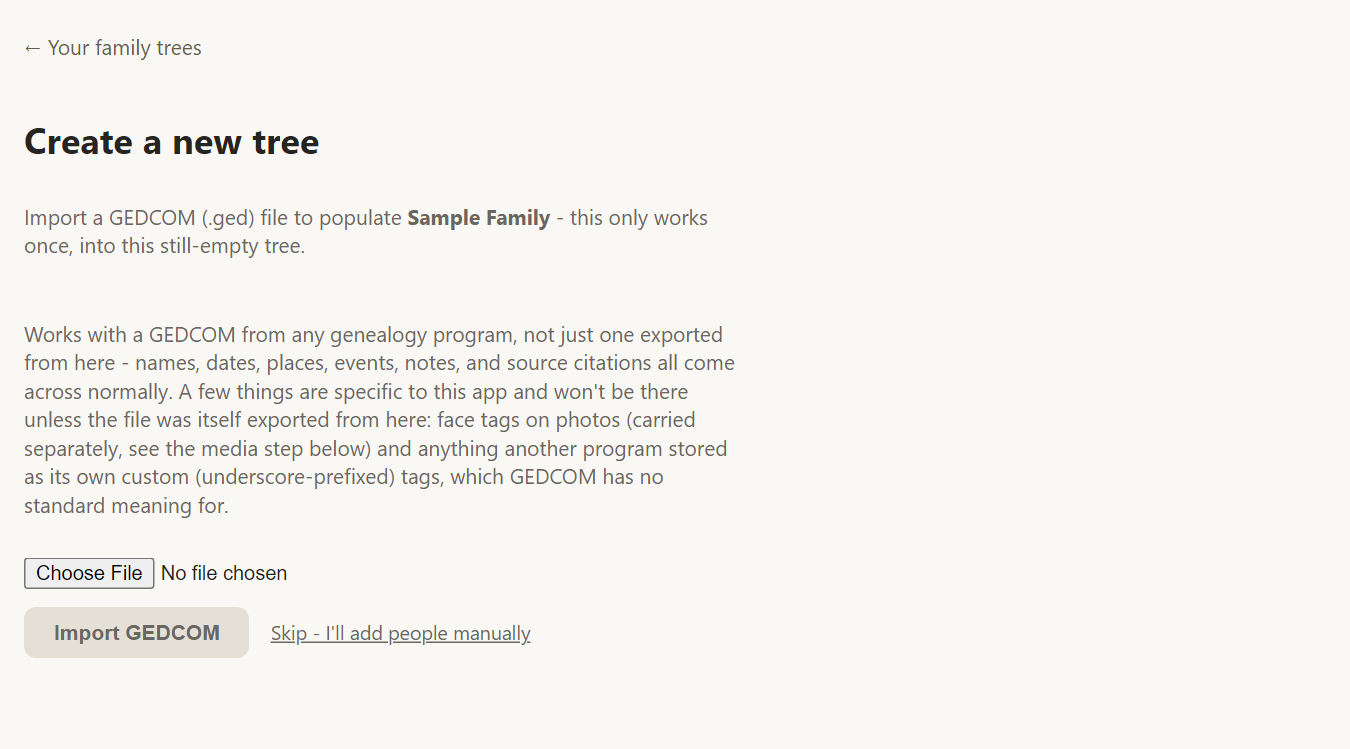
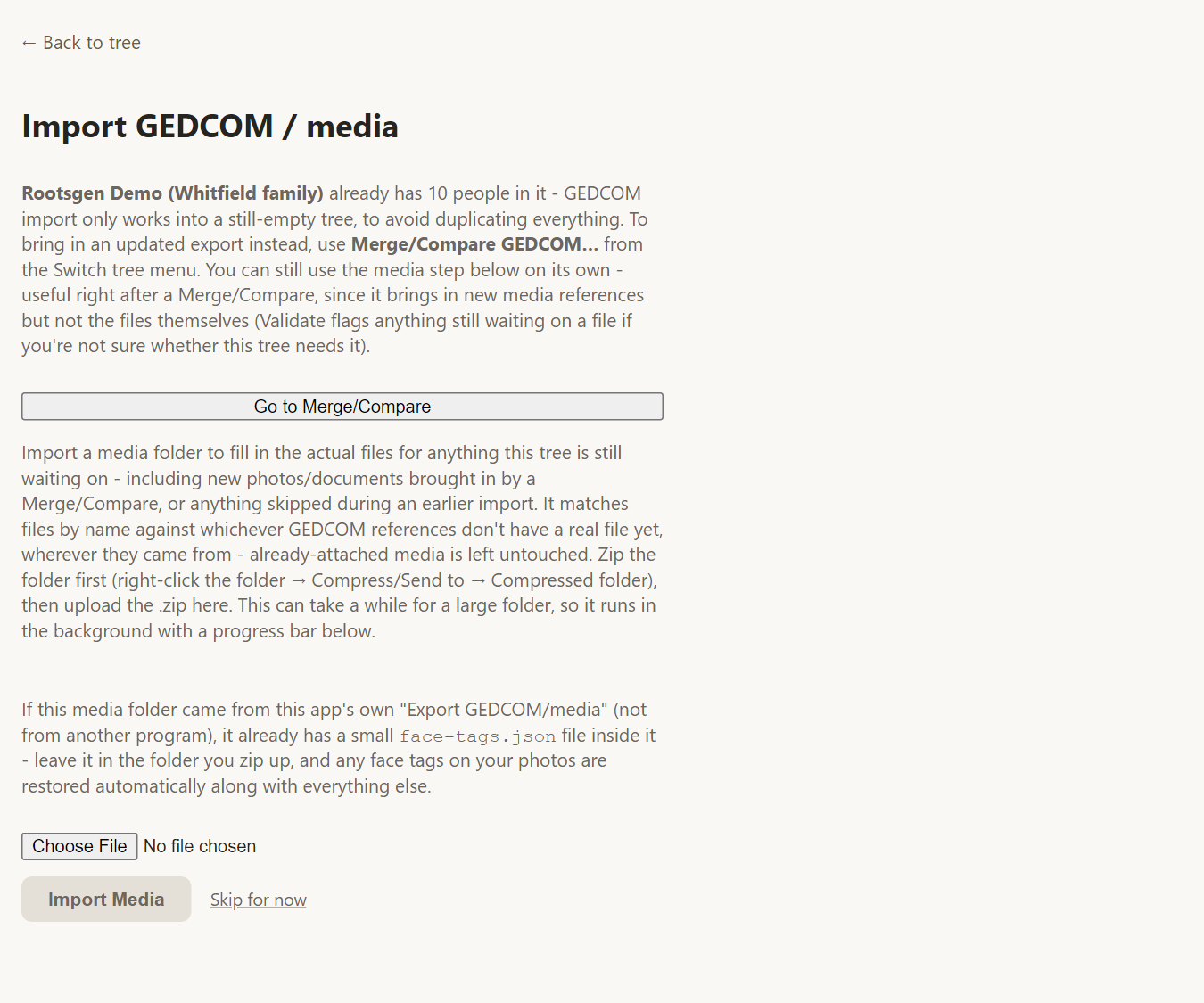
A GEDCOM import only works into an empty tree, once. That avoids creating duplicate copies of everyone. To update a tree that already has data, use Merge/Compare.
Step 2: import your photos and documents
A GEDCOM file lists your photos but does not contain them. When step 1 finishes you see how many people, families and media references arrived, and can upload the media folder.
- Put the folder that holds your photos and documents into a .zip file. On Windows, right-click the folder and choose Send to, then Compressed folder.
- Choose the zip and press Import Media. It runs in the background with a progress bar, so a large folder is fine.
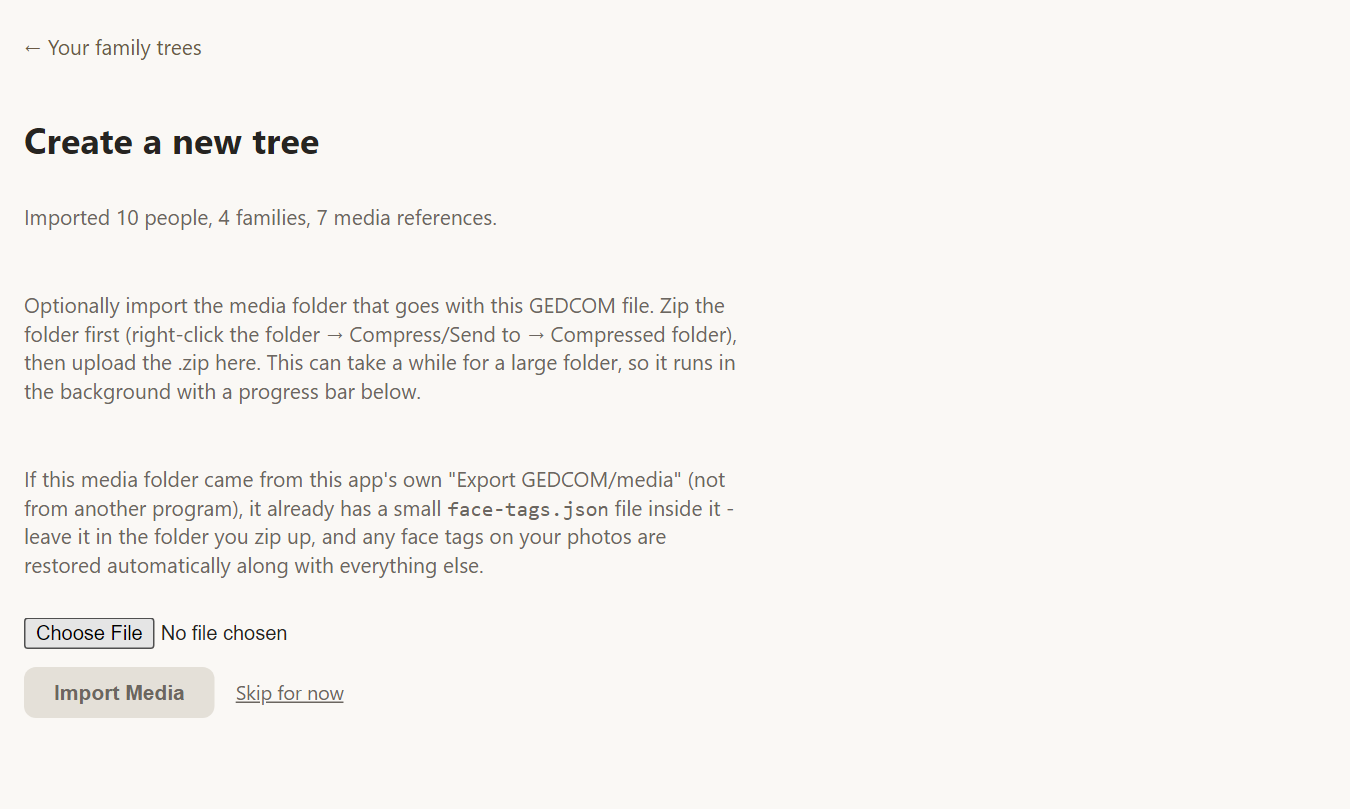
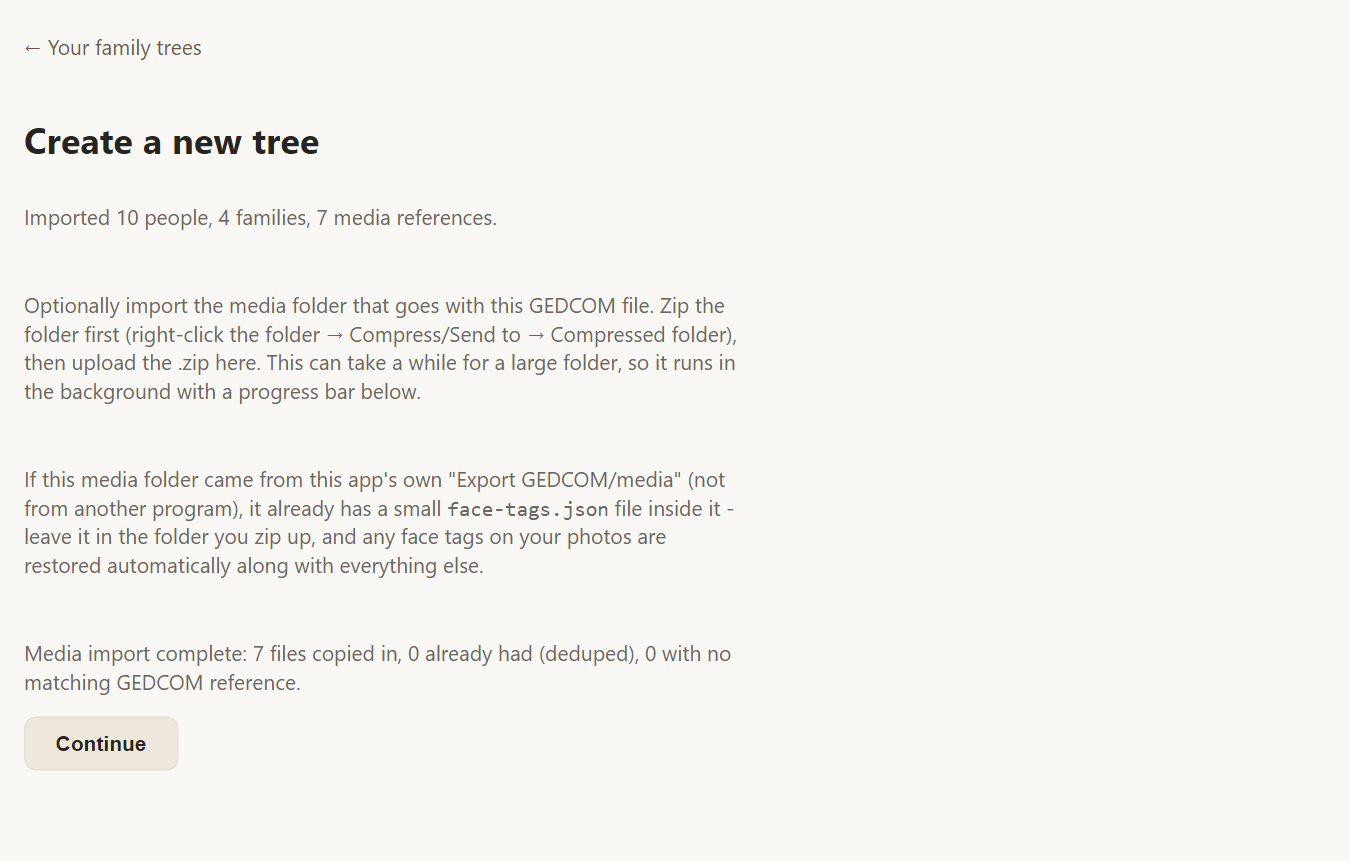
Rootsgen matches each file to the photo the GEDCOM mentions by file name. Identical files are stored once, and thumbnails are made for pictures. When it finishes it reports how many files were copied in.
Step 3: open your tree
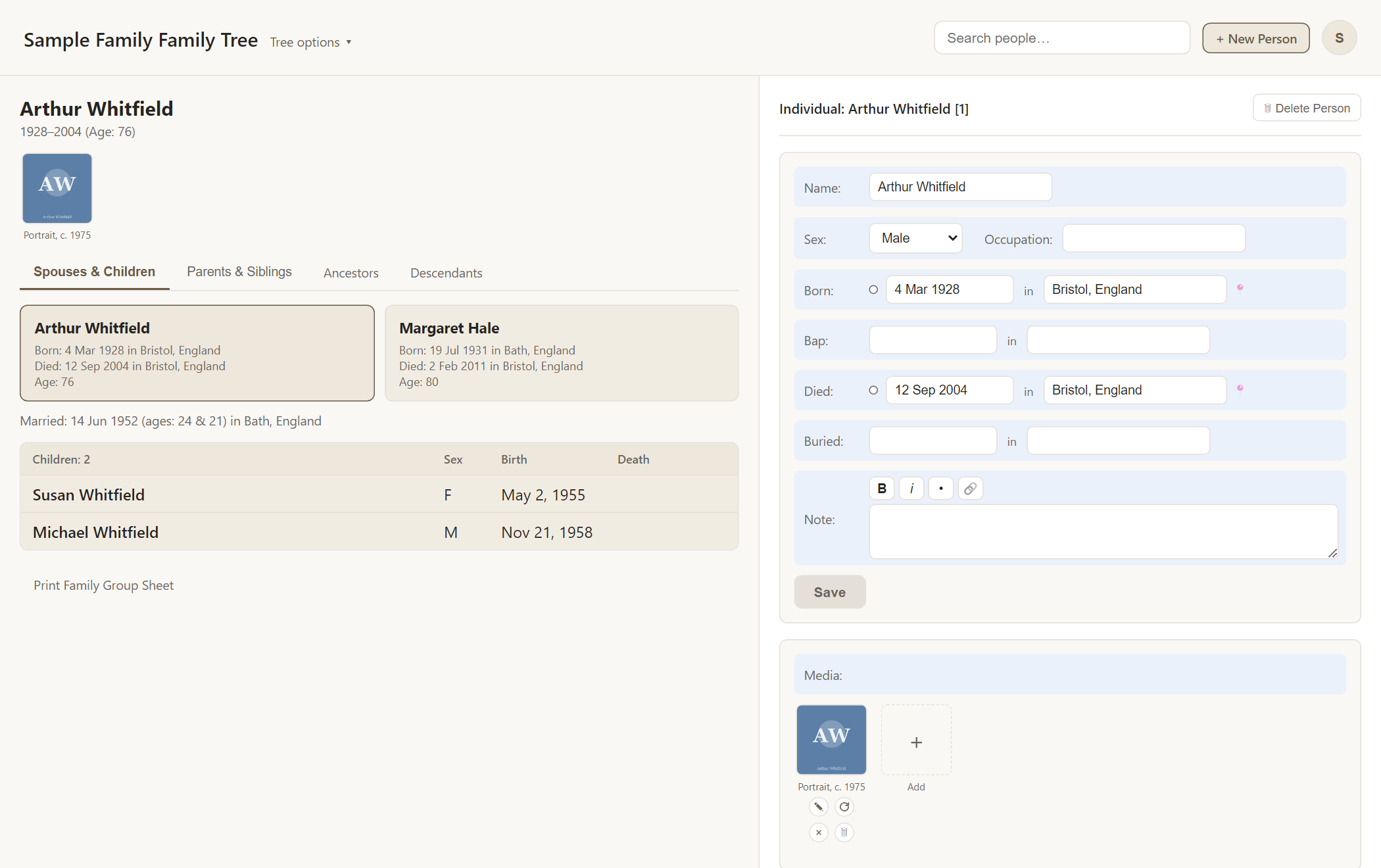
Choose Go to your tree and you land on the tree's first person, with photos attached.
Adding photos later
You can run the media step again at any time, for example after a merge brings in new photo references. Files already attached are left alone, so re-running is safe. From Tree options → Import GEDCOM/media… on a tree that has people, only the media step is offered.
What does not come across
Almost everything in a standard GEDCOM file is imported. Two things are specific to Rootsgen and only appear if the file was exported from Rootsgen itself: face tags on photos, which travel in a small file inside the media folder, and tags that another program invented for its own use.
Frequently asked questions
How big can the media folder be? There are generous limits, and Rootsgen tells you if you reach one. Zip files of several gigabytes are fine.
I skipped the media step. Can I add photos now? Yes. Open Import GEDCOM/media… from Tree options and run the media step. Validate also lists any photo still waiting for its file.
Can I import a second GEDCOM into the same tree? Not with Import - that would duplicate everyone. Use Merge/Compare, which shows every difference and lets you choose.