Delete a family tree permanently
Sometimes a tree is finished with: a test import, a duplicate, or research you have moved elsewhere. Delete this tree removes it completely. Because deletion cannot be undone, Rootsgen makes it deliberate.
Where to find it
Open Tree options → Delete this tree…, at the bottom of the menu in red. Only the tree's owner can delete it. Co-owners, editors and viewers cannot, even if they can do almost everything else.
What you see before anything is deleted
The page states plainly what will be removed: how many people, how many media files (which are deleted from disk), and everyone's access to the tree.
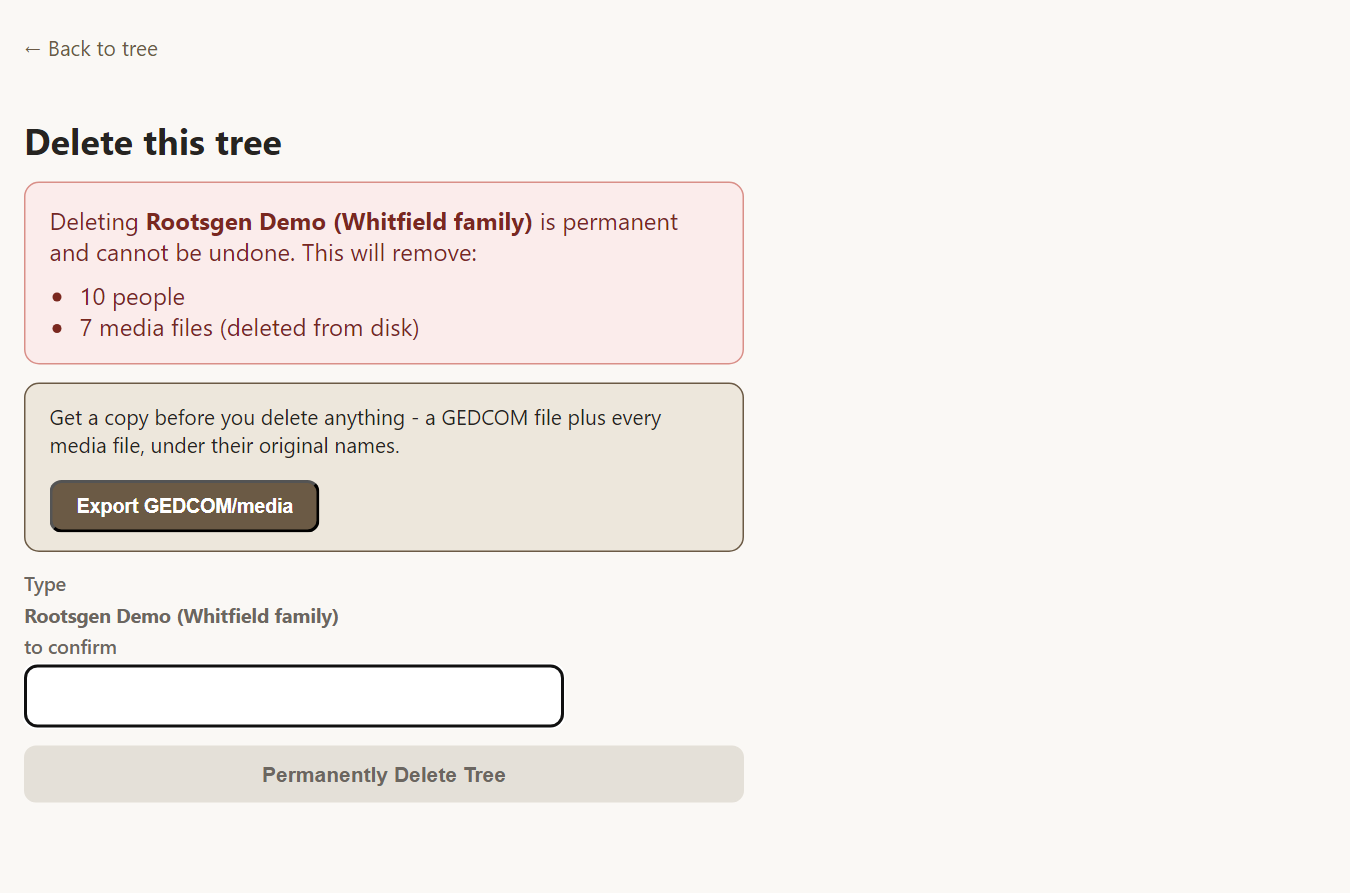
Take a copy first
Right on the page is an Export GEDCOM/media button. It builds a GEDCOM file and every photo under its original name, so you can keep a copy or import the tree again elsewhere. See exporting your tree. If you might want an exact copy, take a complete backup too.
Confirm by typing the name
To delete, you must type the tree's exact name. Only then does Permanently Delete Tree work. This stops a slip of the mouse from removing years of research.
Frequently asked questions
Can a deleted tree be recovered? No. Once you confirm, the tree and its media are removed. Export or back up first if there is any doubt.
Will other people notice? Everyone who had access loses it, and the tree disappears from their list.
Is a tree ever deleted automatically? Not without warning. A tree left untouched for a long time triggers a warning to its owner - by email if they have one on file, or a flag for an administrator if not - and is disabled rather than deleted; permanent deletion is always a manual decision.