Custom List Report: print any saved search as a report
The Custom List Report is how you turn a search into a printout. Whatever you can find with Query tree - "everyone born in Bath before 1950", "all the descendants of Thomas" - can be printed as a table.
Two ways to make one
- From Query tree: run a search, then choose Print as report under the results. It prints exactly what you searched.
- From Reports: open Tree options → Reports… and, under Custom List Report, choose a saved search you made earlier with Save this search….
What is on it
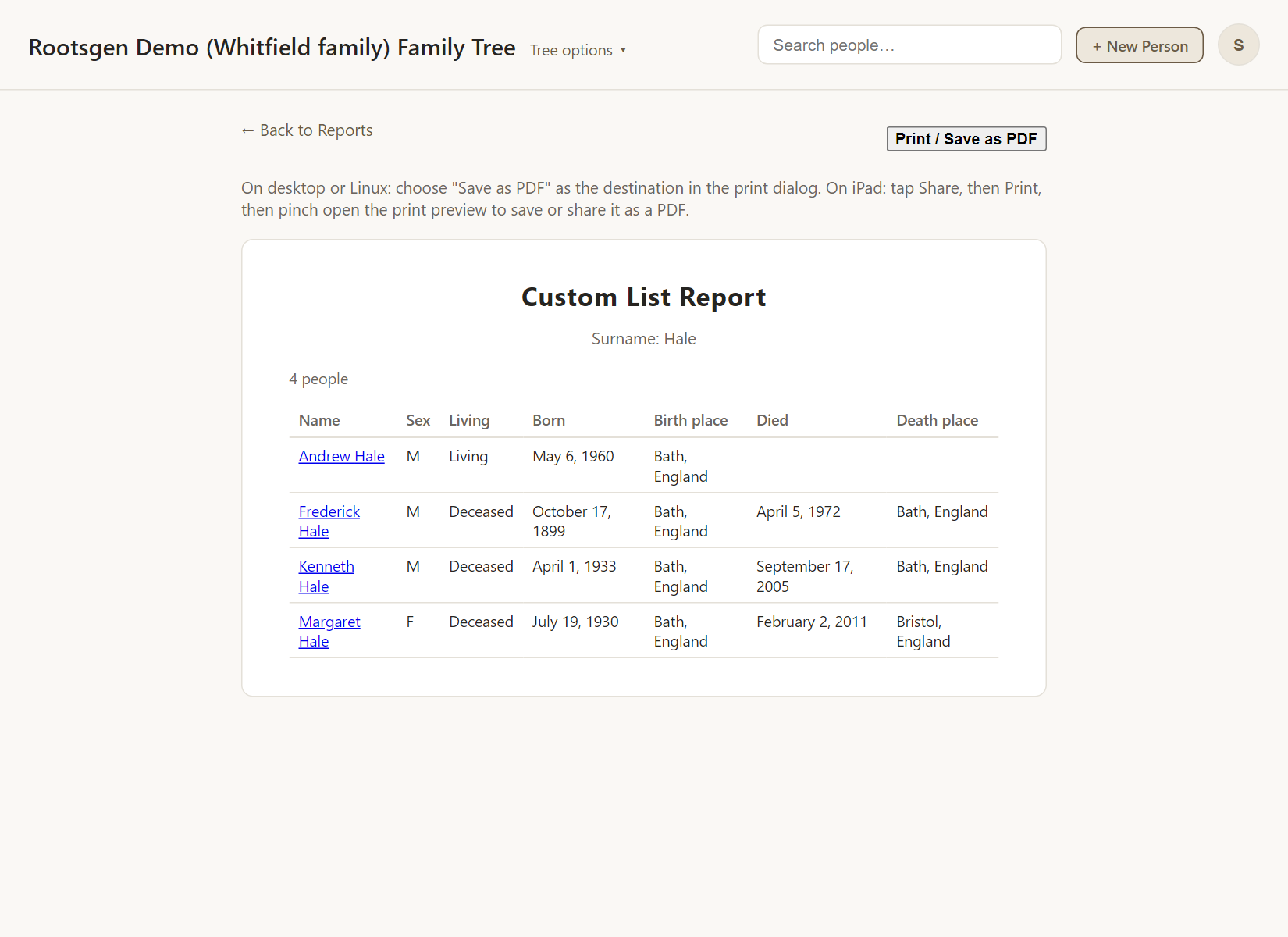
- A plain-English description of what was searched, such as "Surname: Hale".
- A table of every match: name, sex, living or deceased, born, birth place, died, death place.
- The report is laid out to print on as many pages as needed.
Good uses
- A list of everyone in a branch, for a family reunion.
- A worksheet of people missing a death date, to research next.
- A checklist to tick off during an archive visit.
Every report has a Print / Save as PDF button that uses your browser's own print dialog, so choose Save as PDF to make a file. See all reports.
Frequently asked questions
Can I include living people? The report is for people who already have access to the tree. To share a list outside the tree, export to CSV with living people masked. See protecting living people.
Can I sort it? Results follow the order you had in Query tree, by name or by birth year.
What if my search has several groups? Groups combine with "or", and the description at the top lists each one.