Preferences: set up Rootsgen the way you like it
The Preferences page holds every setting that belongs to you rather than to a tree. Settings save automatically as you change them, so there is no Save button to forget.
Where to find it
Choose Preferences from your account menu, the round button at the top right.
Security and identity
These sections are at the top of the page.
Passkeys lists every device (or password manager) you've registered to sign in with, each with a name and the date added. Use + Add a passkey for this device to register the device or browser you're currently on, or Add a passkey for another device... to generate a short code for a phone or second computer that doesn't have a passkey yet - see passkeys and your recovery code for exactly how that works, including how long the code stays valid. Remove takes one off the list - useful after losing or replacing a device.
Recovery code is a one-time code that lets you back in if you ever lose access to every device with a passkey on it. It is shown only once, when you create it - see passkeys and your recovery code.
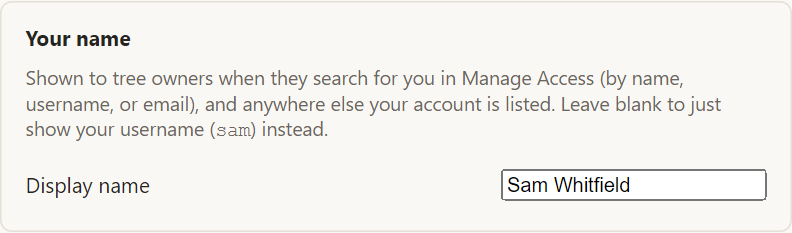
Your name is the display name that owners see when they search for you in Manage access. Leave it blank and your username is shown instead.
How things look
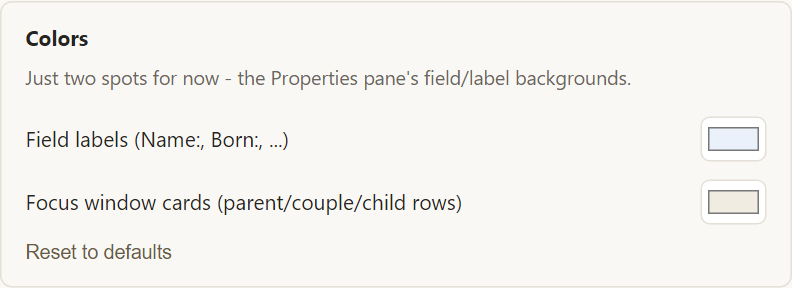
Colors changes the background of the field labels and the cards in the person view. Reset to defaults puts them back.
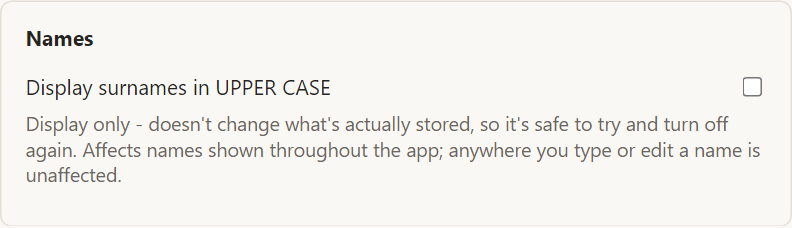
Names can show surnames in UPPER CASE without changing what is stored.
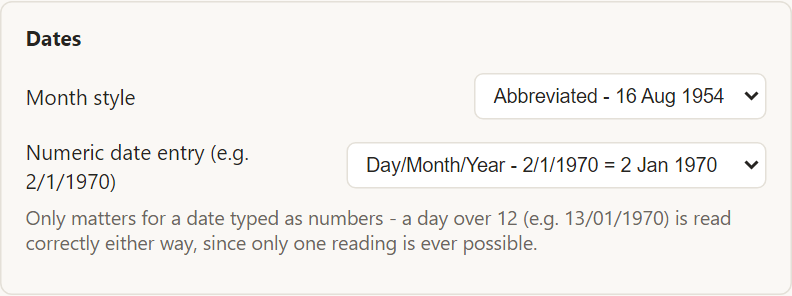
Dates sets how months are written and how numeric dates you type are read. See display preferences.
Opening your trees
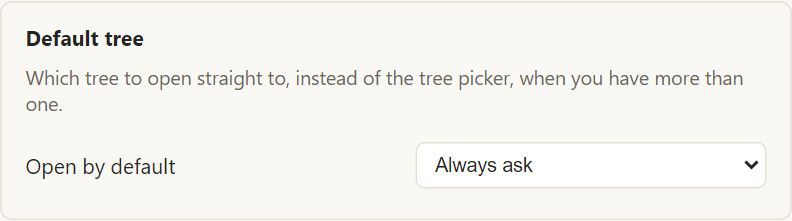
Default tree chooses which tree opens straight away after you sign in, instead of the tree picker. It only matters when you have more than one tree.
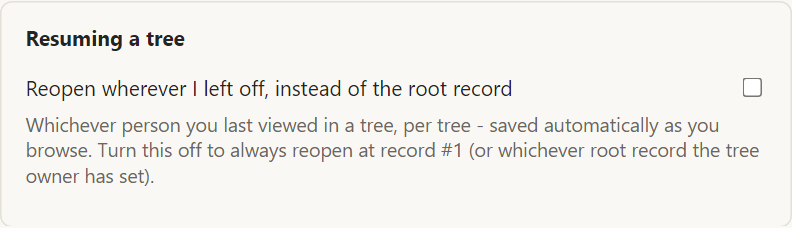
Resuming a tree reopens each tree on the last person you viewed in it, instead of on the tree's root person. Rootsgen remembers this per tree as you browse.
Deleting your account
The last section of the page, Delete my account, closes your account permanently and shows you what will happen to each of your trees first. See deleting your account.
Frequently asked questions
Do my preferences apply on every device? Yes. They are stored with your account, so they follow you to a phone, an iPad or another computer.
Will changing colors affect what other people see? No. Preferences are personal. Only you see your colors, names and date formats.
How do I get back to the defaults? Use Reset to defaults under Colors. Other options can be turned off or set back to their first choice.