Edit people and facts: dates, places, notes and occupations in your family tree
Editing is designed to feel like filling in a form, not operating a database. Every fact about a person is in one place, the editable record on the right of the person view (or under the Edit tab on a tablet or phone). Only owners, co-owners and editors see editable fields; viewers see the same information read-only.
The editable record
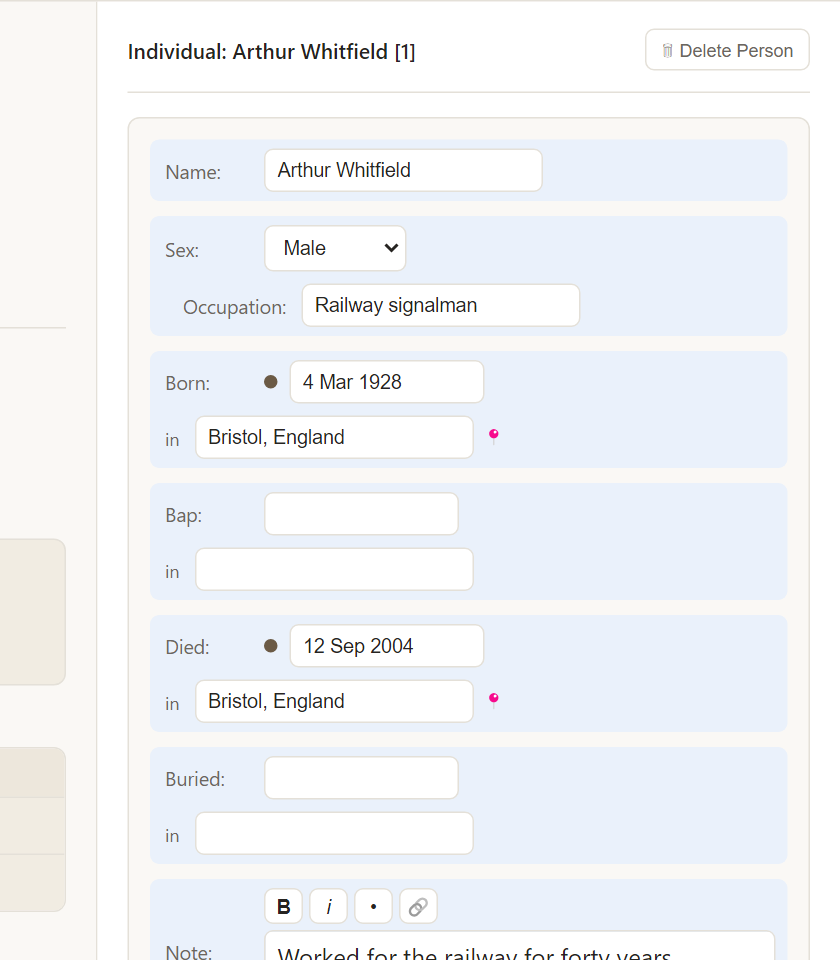
- Name - the full name. The surname is filled in for you when you add a relative, based on the family.
- Sex - Male, Female or Unknown.
- Occupation - free text.
- Born, Bap (baptism), Died, Buried - each has a date and a place.
- Note - free text with simple formatting.
Press Save when you have finished. The button is grey until you change something.
Type dates the way you write them
Rootsgen understands the ways genealogists actually record dates:
- an exact date such as 16 Aug 1954
- an approximate one such as Abt 1954, or Bef 1900, Aft 1850
- just a year, 1954
- numbers such as 2/1/1970, read as day/month/year or month/day/year according to your setting in Preferences
A date in the future is refused with a clear message. Dates are shown back to you in the style you choose.
Places fill in as you type
The place boxes suggest places already in your tree, so "Bristol, England" is spelled the same way every time. The small pin next to a place means it has a saved location. See places and maps.
Notes with formatting
The Note box has a small toolbar: B for bold, i for italic, a bullet list, and a link. It is plain text underneath, so it always survives an export. A separate Family note on a couple's family is for something about the marriage itself, not about either person.
Sources for each fact
The dot beside a date shows whether that fact has a source. See sources and citations.
Two people editing at once
Rootsgen protects against overwriting someone else's work. If another person saved a change to the same record while you were editing, your save is stopped with a message asking you to Reload and look at their changes first, so nothing is silently lost.
Deleting a person
Delete Person removes a person permanently. Rootsgen shows what will be affected first, and it never deletes a photo or note that another person is still using.
Frequently asked questions
Can I undo a change? Change the field back and save again. For bigger safety, take a backup before big edits.
How do I add a person who is not connected to anyone yet? Use + New Person at the top of any page, then link them to family later. See adding relatives.
Are my edits saved as I type? No. Your changes are saved when you press Save, so you can review them first.