Photos and documents: attach, rotate, caption and share pictures on your family tree
Pictures bring a tree to life. Rootsgen lets you attach photos and documents to any person or family, keeps the original file, and shows them wherever that person appears.
The photo strip
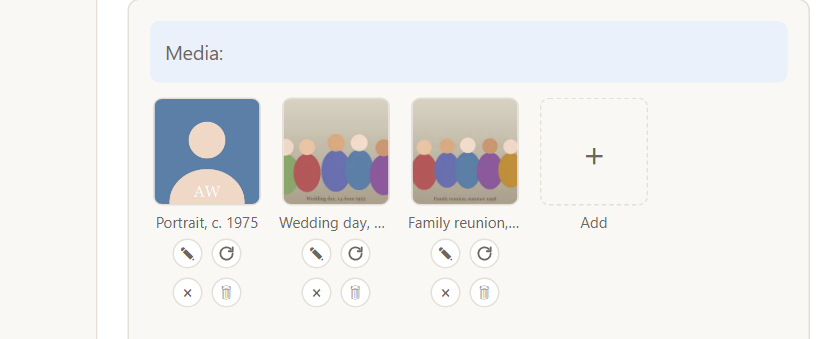
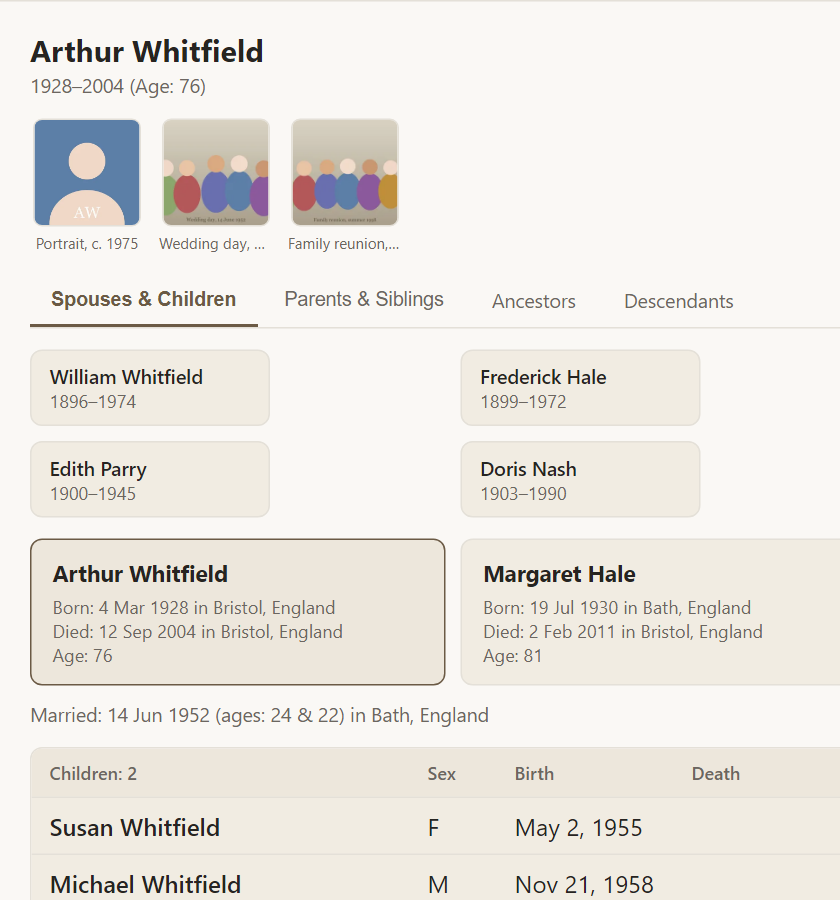
Each person's photos and documents appear in a strip near the top of their page, and again in the Media section of their editable record.
Everyone with access to the tree can see them. Owners, co-owners and editors can change them.
What the buttons do
Under each thumbnail are four small buttons:
- ✎ Edit title - give the picture a caption such as "Portrait, c. 1975".
- ⟳ Rotate 90° - turn a sideways photo upright. Press again for further quarter turns. The picture file itself is turned, so exports and downloads are upright too.
- × Remove from this person - stop showing the picture for this person. If it is attached to someone else, it stays there.
- 🗑 Delete this file permanently - remove the file from the tree entirely. Rootsgen asks first.
The dashed + Add tile uploads a new photo or document.
Photos, PDFs and other documents
Pictures show as thumbnails. Other files, such as a PDF certificate, a scanned letter or a Word document, show with an icon and open in a new tab. So a marriage certificate can live right next to the wedding photograph.
Group photos and shared pictures
One photograph can be attached to several people, such as a wedding photo linked to the couple and both sets of parents. It is stored once and appears on each page. Identical files are always stored only once, even if they arrive from different places.
The full-size viewer
Click a picture to open it full size. In the viewer you can tag the people in it. See face tagging.
Orientation and quality
Phone photos often carry a hidden "rotate me" flag. Rootsgen respects it, so thumbnails are upright as well as the full-size picture. Your original file is kept unchanged, except when you choose Rotate.
Frequently asked questions
Where do photos come from when I import a GEDCOM? A GEDCOM lists photos but does not contain them. Upload the media folder as a zip afterwards. See importing photos.
Will my photos be included in an export? Yes. A GEDCOM export or backup includes every photo under its original file name. See exporting.
Can living people's photos be left out? Yes, with masking. See protecting living people.