Face tagging: identify who is in a family photo and find every picture of a person
Old group photographs are only useful if you know who is in them. Face tagging lets you label each person in a photograph by drawing a box around them, and then shows every photograph a person appears in.
Opening a photo
Click any picture to open the full-size viewer. Tags already on the photo appear as boxes with names underneath. Hide tags clears them if you want to see the picture plain.
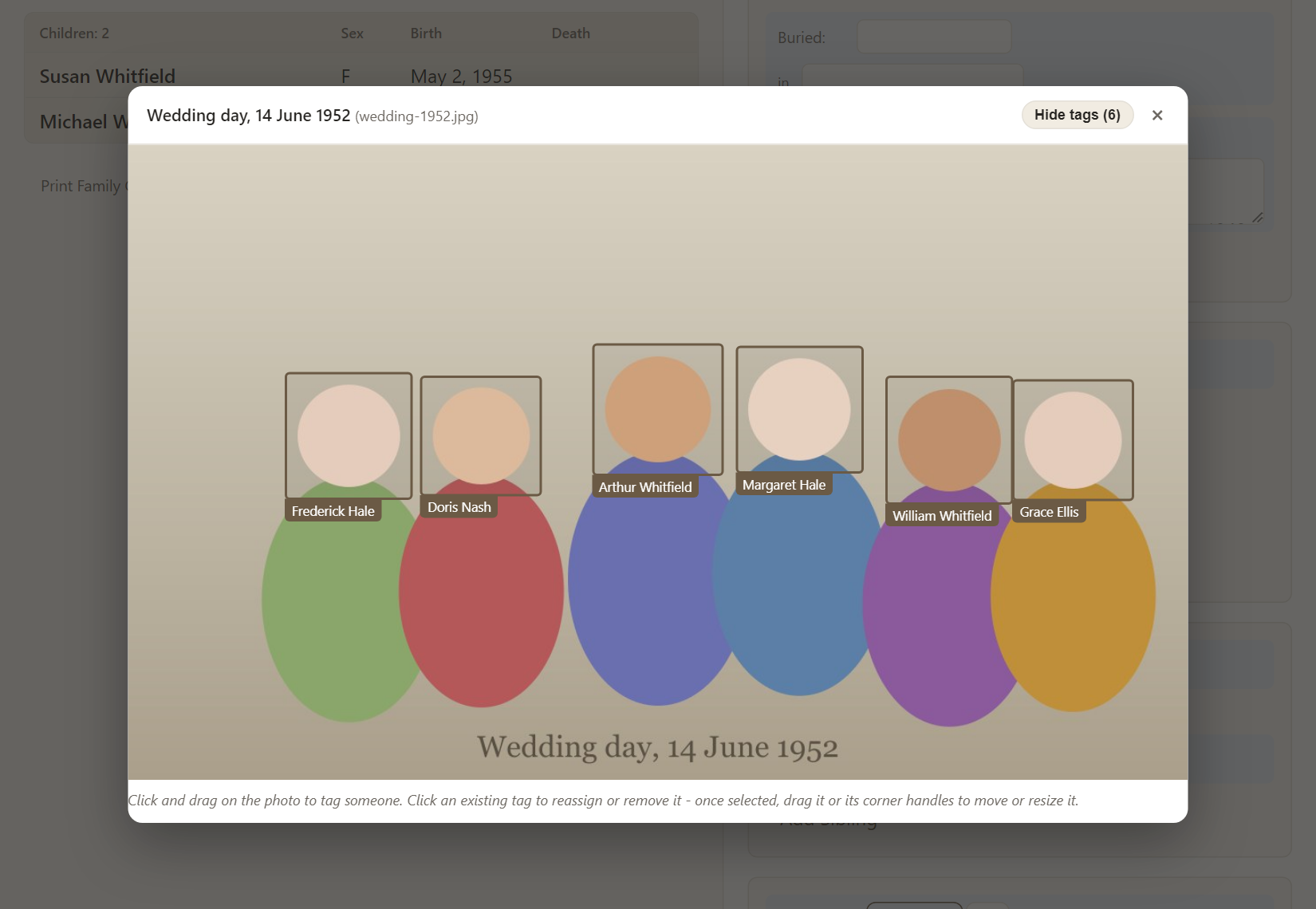
Viewers can see tags. Owners, co-owners and editors can add and change them.
Tag someone
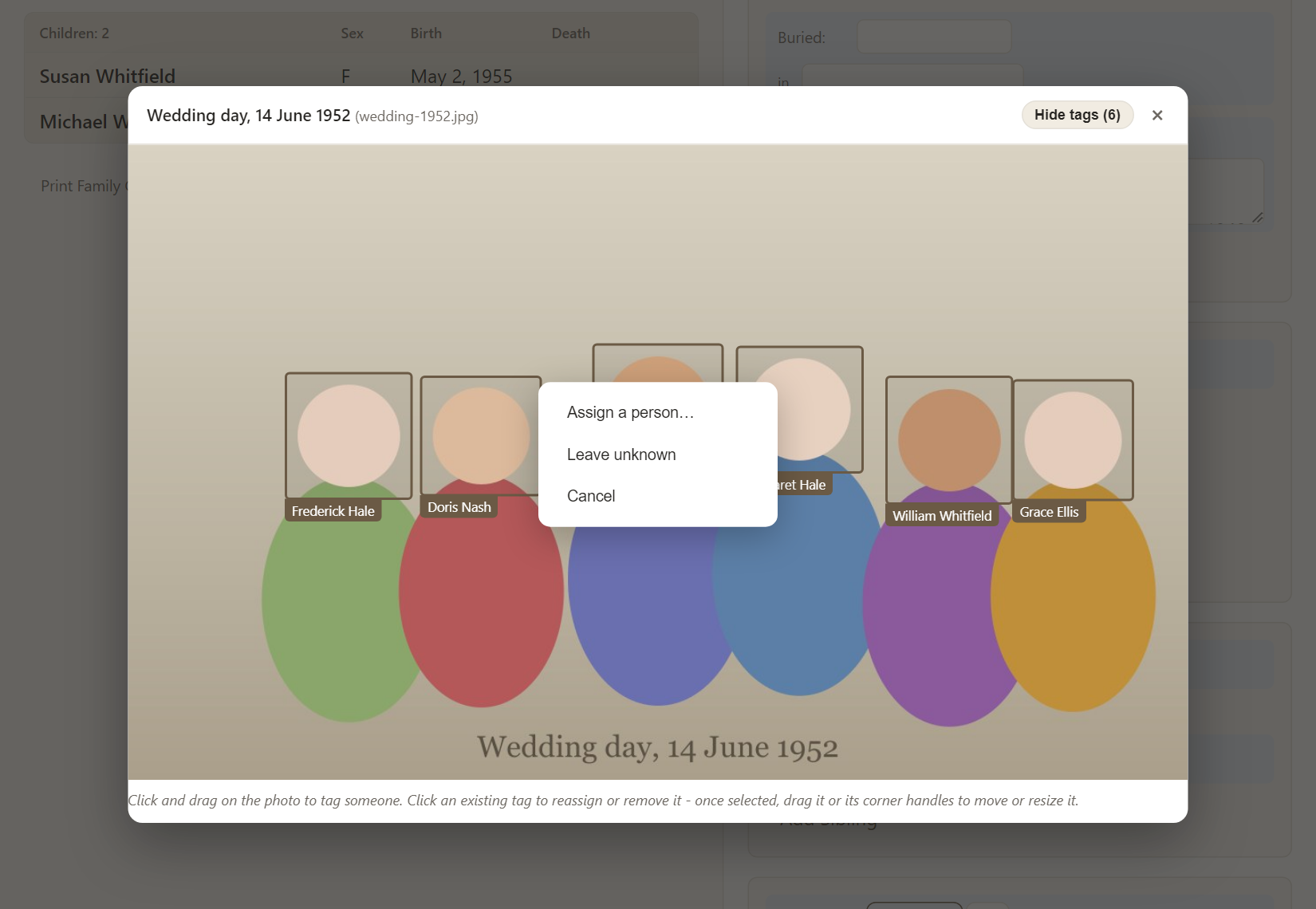
Click and drag on the photograph to draw a box around a face. A small menu asks what to do:
- Assign a person… - search your tree and choose who it is.
- Leave unknown - keep the box for someone you cannot identify yet.
- Cancel - throw the box away.
Change or remove a tag
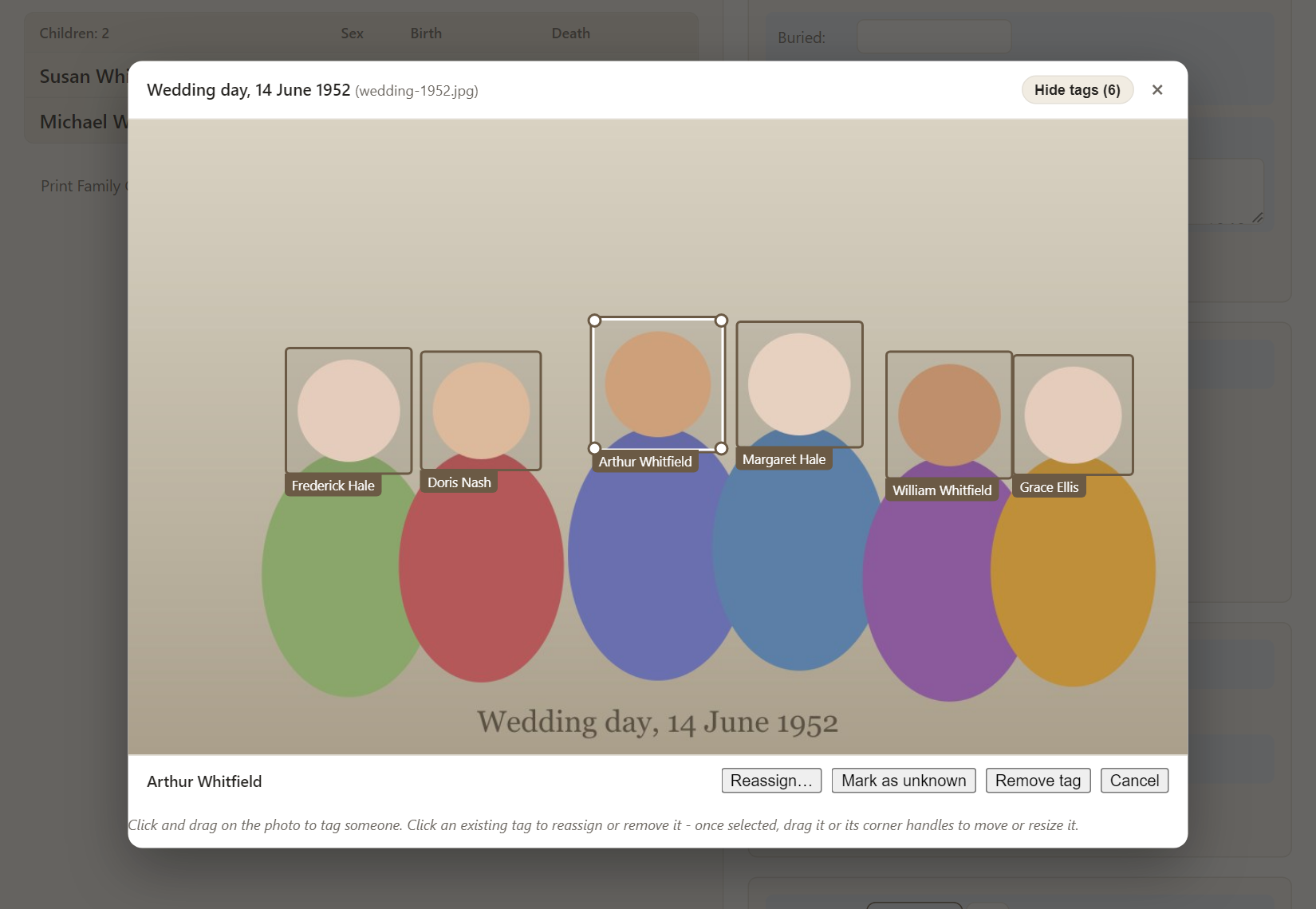
Click an existing tag to select it. Corner handles appear, and a bar at the bottom offers Reassign…, Mark as unknown, Remove tag and Cancel. Drag the box to move it, or drag a corner to resize it.
See every photo of a person
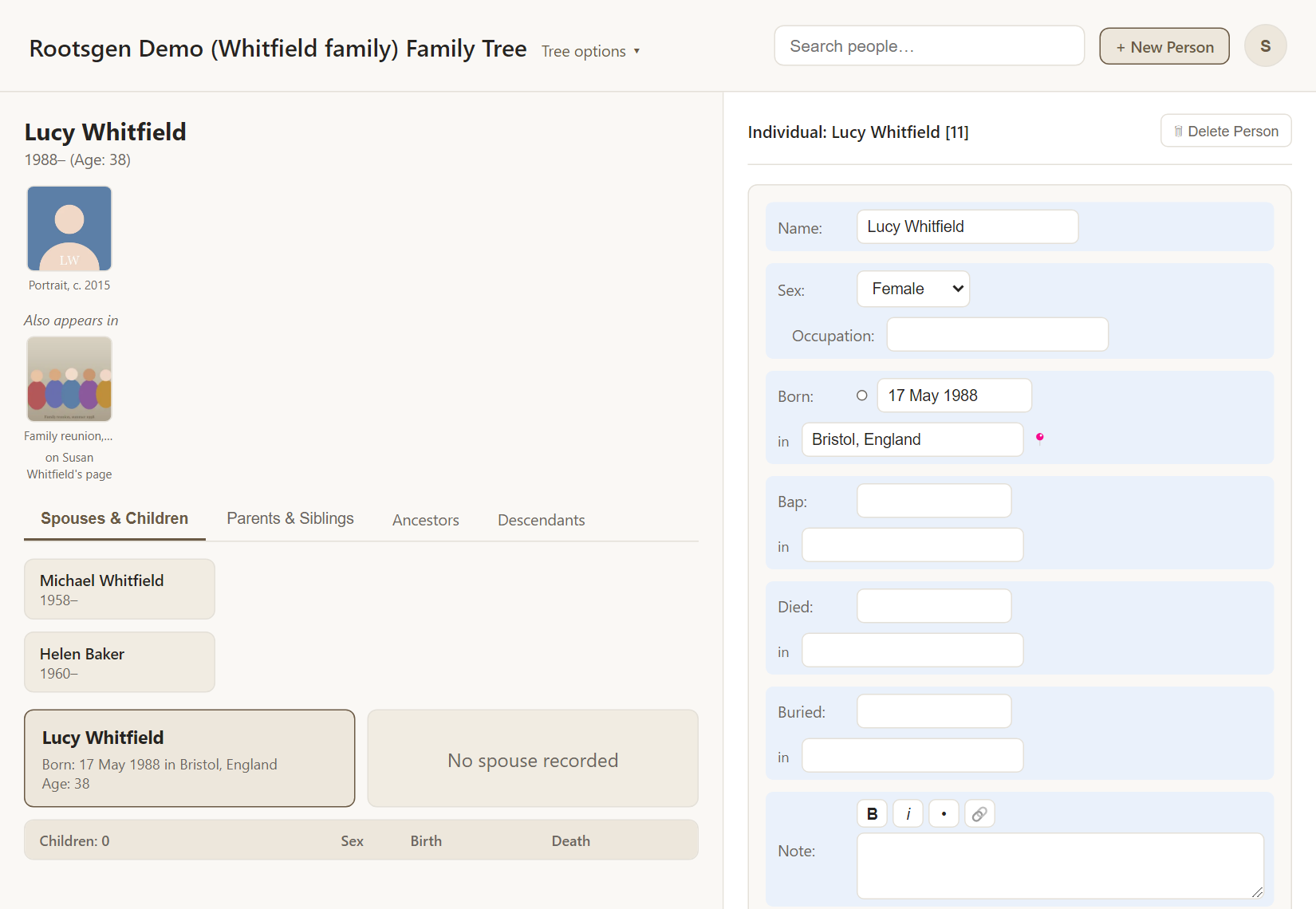
Tagging says who is in a picture; it does not add the picture to that person's own photos. That is deliberate, so a tag never changes whose page a photograph belongs to. Instead, each person's page shows an Also appears in section for photos where they are tagged but which belong to someone else, naming whose page it is on.
Keeping tags safe
- Tags survive an Export GEDCOM/media and a re-import, because they travel in a small file with the photos. Tags marked unknown are only kept in a full backup.
- Living people can be left out of an export with masking, including their face tags.
- Rotating a photo turns its tags with it.
Frequently asked questions
Does Rootsgen recognise faces automatically? No. You draw and assign every tag yourself, so nothing is guessed and nothing is analysed by machine.
Can I tag someone who is not in my tree yet? Use Leave unknown, or add the person first with + New Person.
Can I tag a document? Tagging is for pictures.