Use Rootsgen on a phone or iPad: browse, edit and print your family tree anywhere
You do not have to be at a desk to work on your family tree. Rootsgen adapts to the screen in front of you, and everything you can do on a computer - browse, edit, add photos, run reports - works on a tablet or phone too.
Three layouts, one app
- Computer (wide screens): two panes side by side. The family view is on the left and the editable record on the right. See browsing your tree.
- iPad and tablets: one pane at a time, with a Browse | Edit switch at the top.
- Phone: the same Browse | Edit switch in a single column with larger tap targets.
On an iPad or tablet
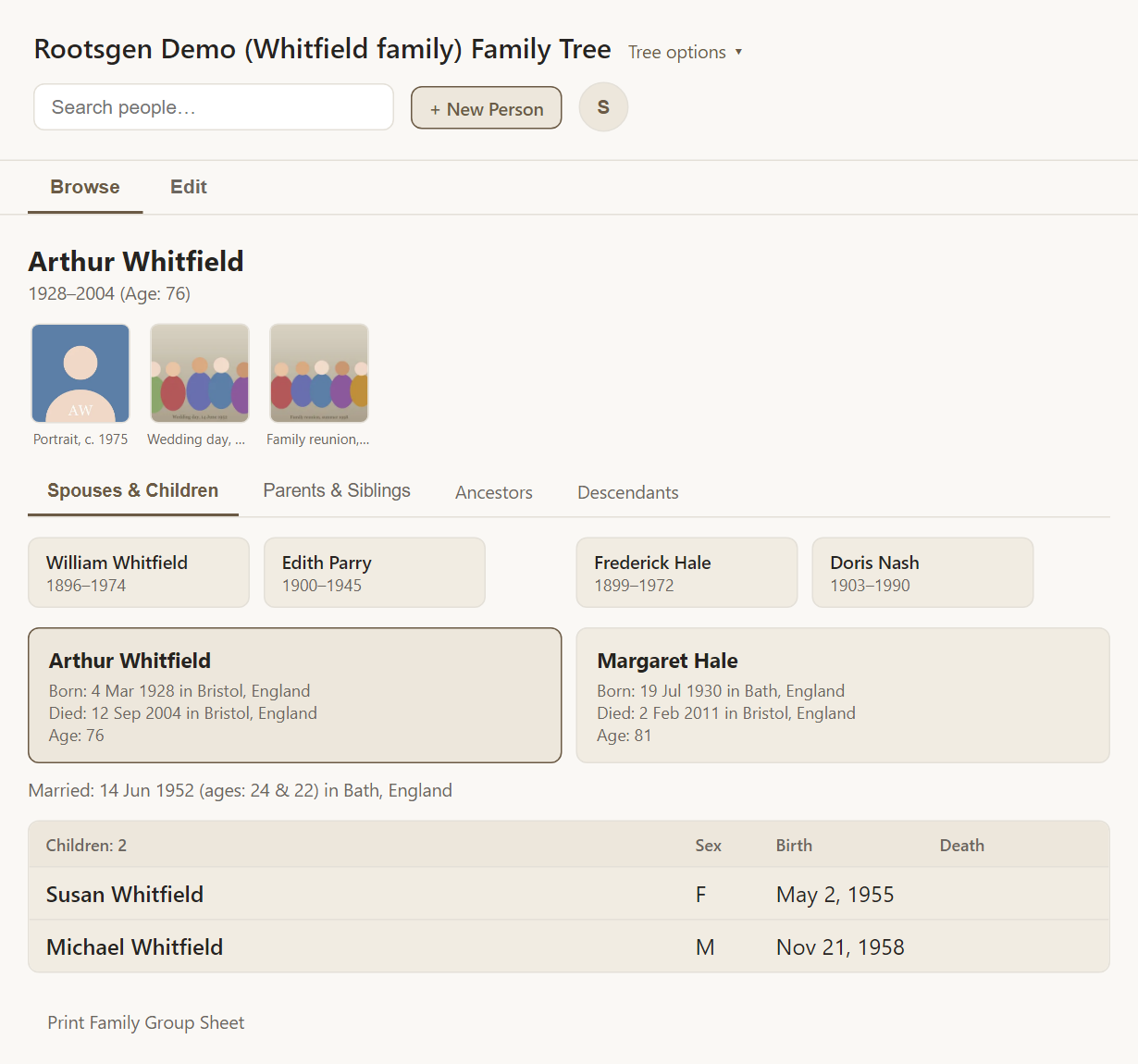
The Browse view shows the person, their photos, the family cards and their children, with the same tabs as on a computer.
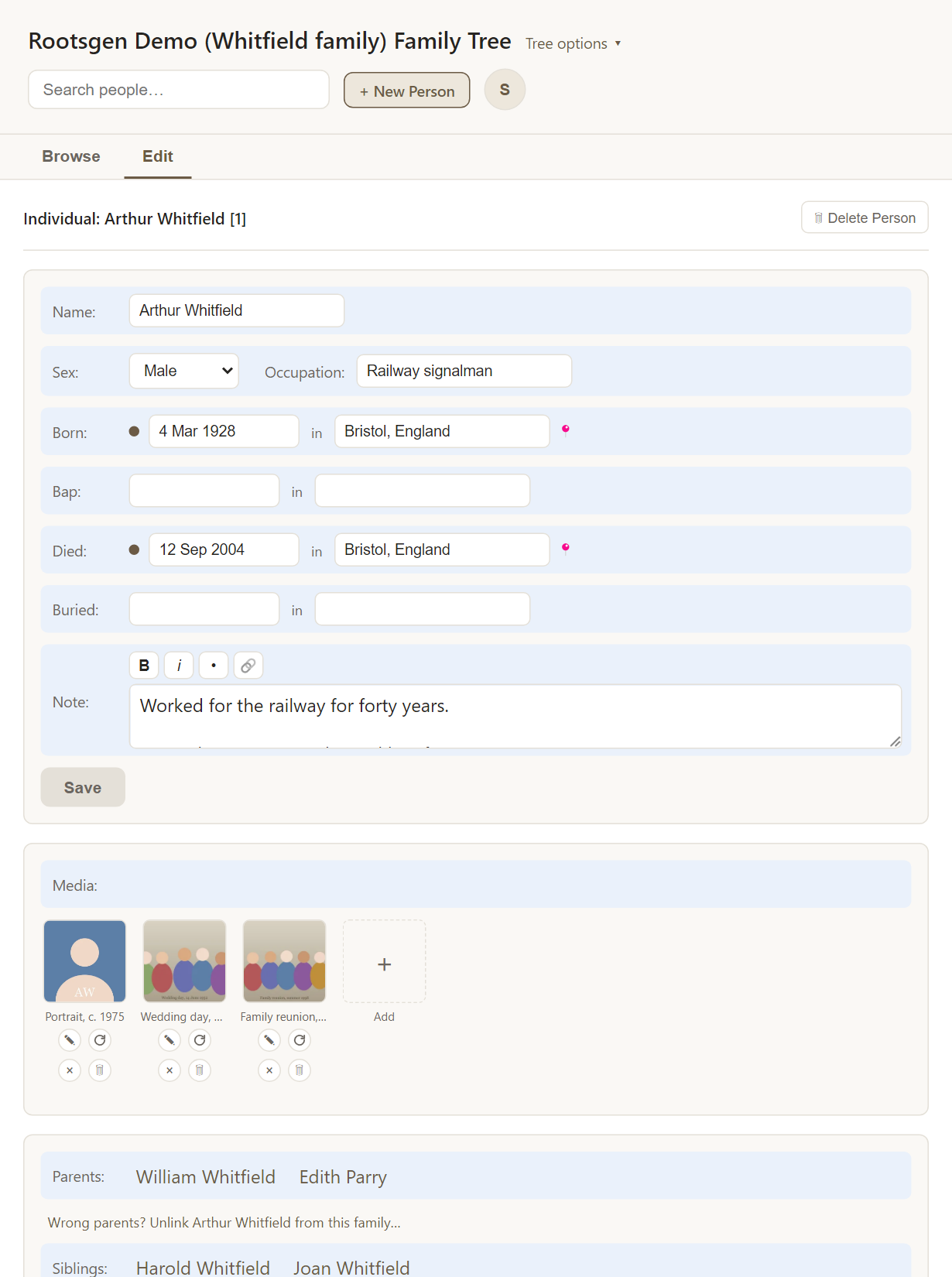
Tap Edit to change the record. The fields are the same ones you see on a computer, laid out to fit the screen.
On a phone
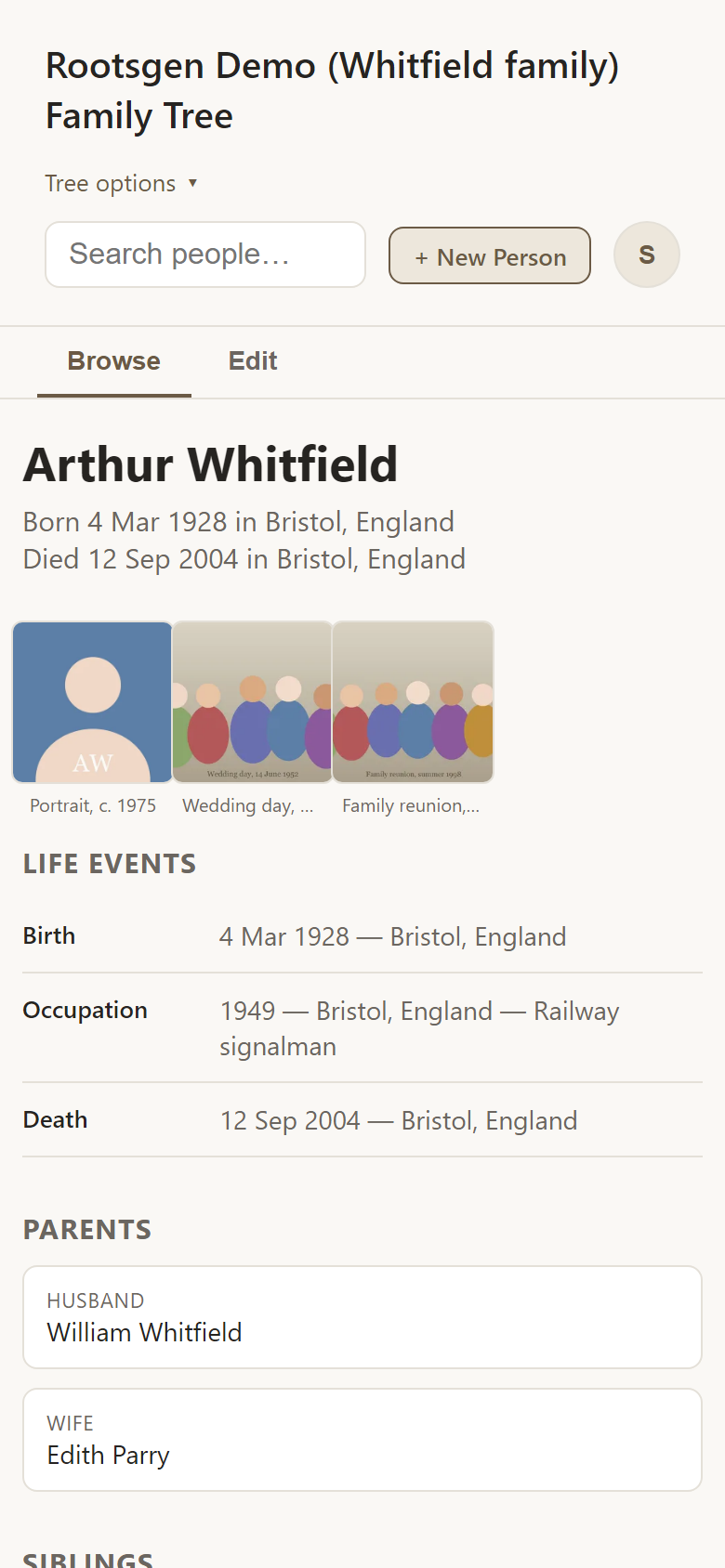
Browse shows a person's life events, parents, siblings, spouses and children as tidy cards you can tap to move around the tree.
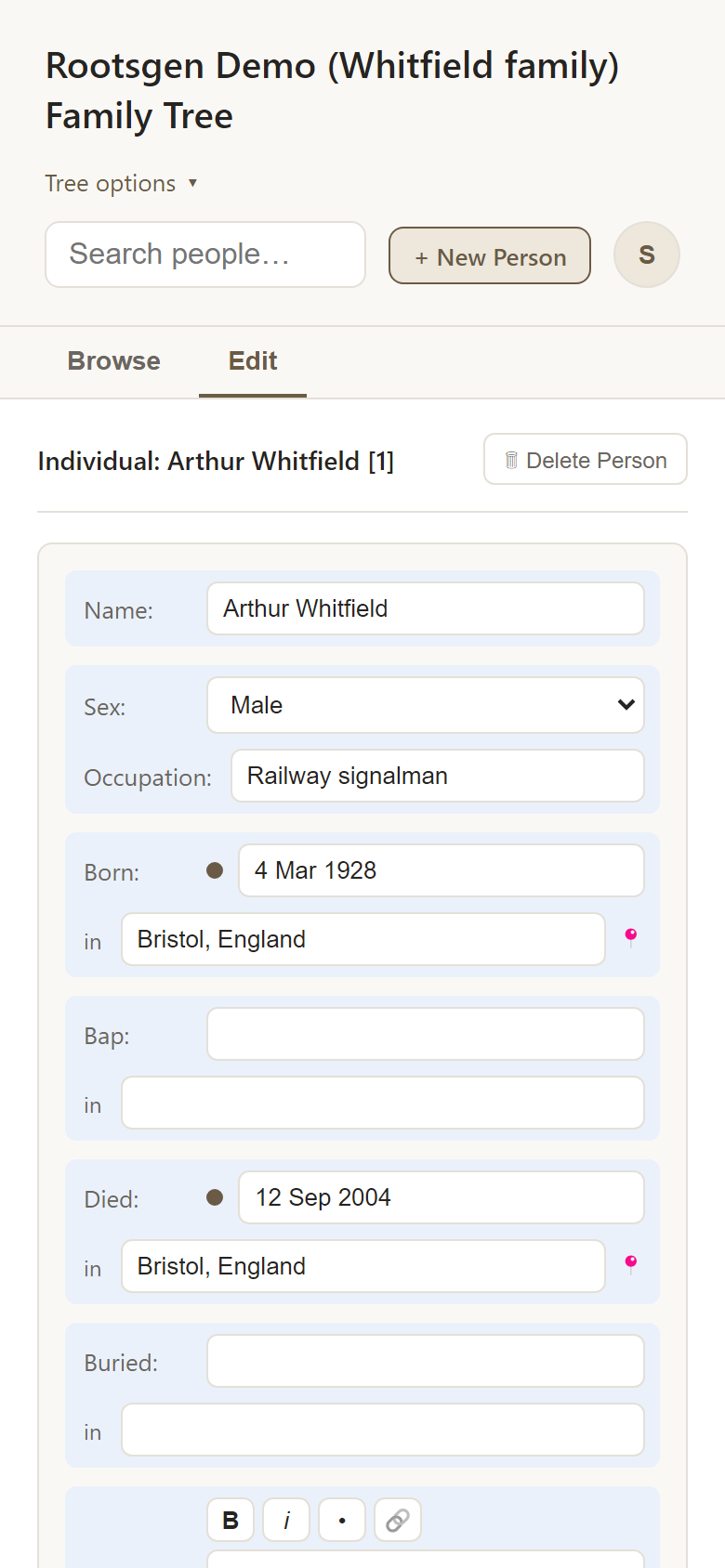
Switch to Edit to change details with big, thumb-friendly fields.
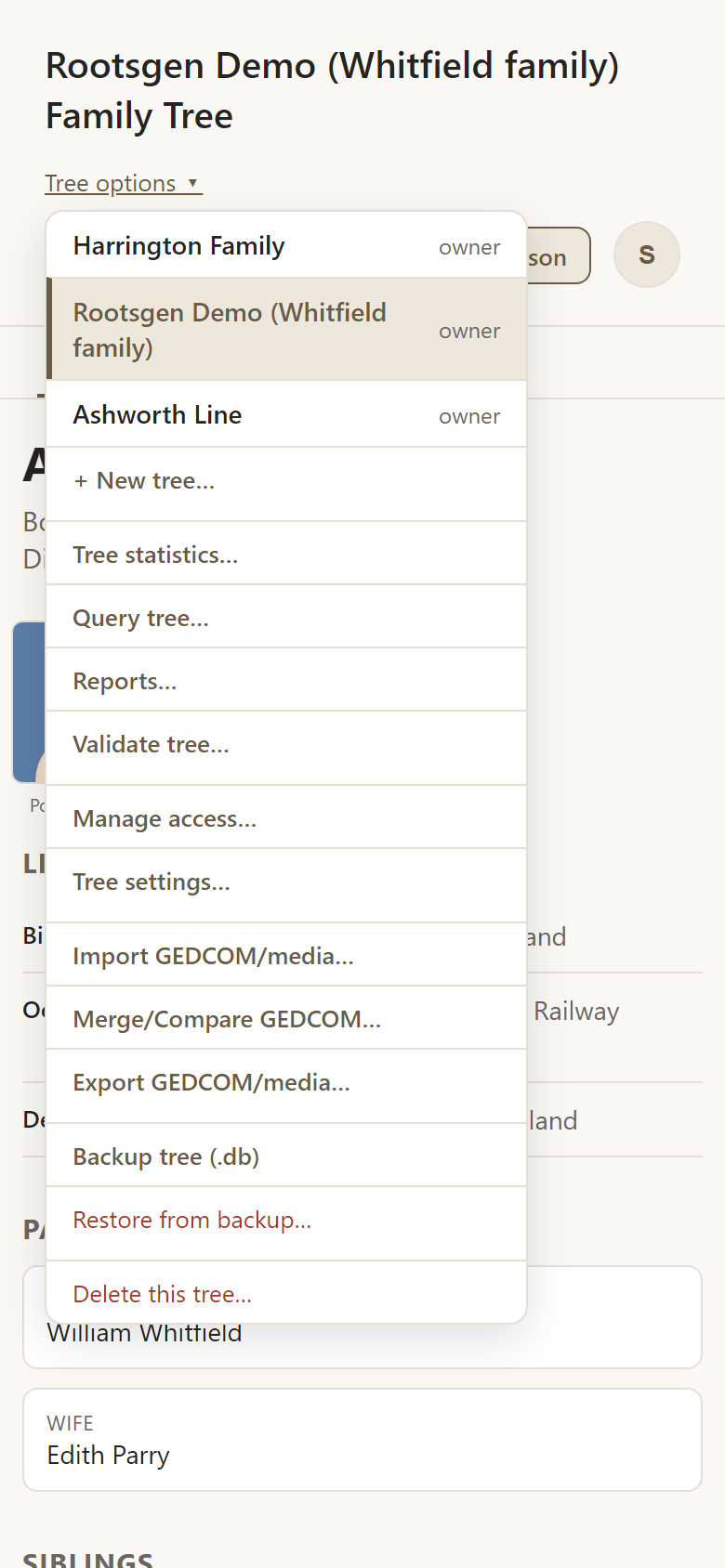
The Tree options menu is on the phone too, with every item explained in the Tree options guide.
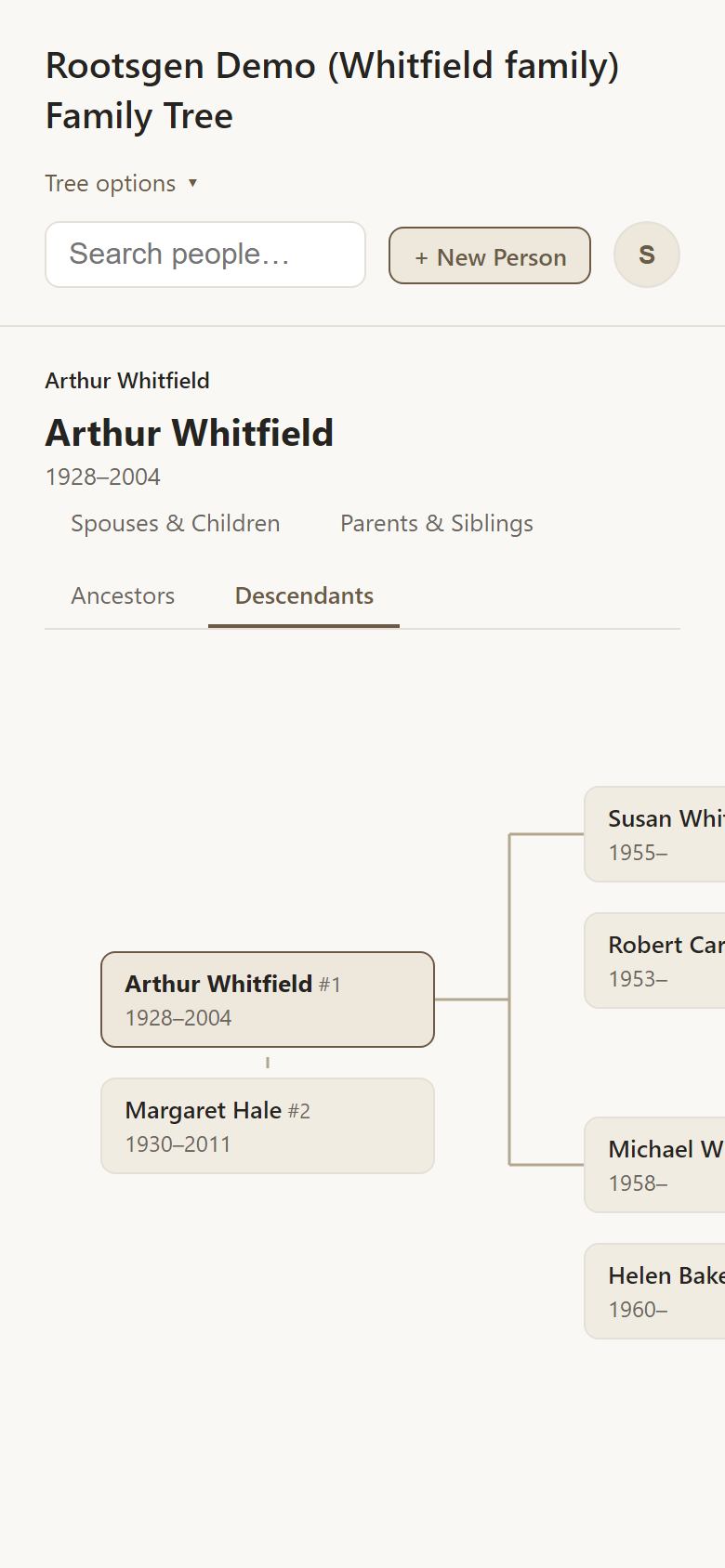
Charts are wider than a phone screen, so you swipe sideways to see more of them.
Printing and saving PDFs on an iPad
Each printable report has a Print / Save as PDF button. On an iPad, tap Share, then Print, then pinch open the print preview to save or share it as a PDF. On a computer, choose Save as PDF as the destination in the print dialog.
Frequently asked questions
Do I need an app? No. Open Rootsgen in Safari, Chrome or any modern browser.
Will my phone and computer stay in sync? Yes. Everything lives on the server, so an edit you make on your phone is there on your computer straight away.
Can I edit on a small screen without making mistakes? Rootsgen checks for edit conflicts, so two people (or two of your own devices) cannot silently overwrite each other. See editing people and facts.